How to access Load Balancer logs

AWS provides access logs for Elastic Load Balancers (ELB), allowing you to monitor and analyze traffic patterns. Below are general steps to access and view ELB access logs:

Amazon ELB Access Logs:

  1. Navigate to the EC2 Console:
    • Open the AWS EC2 Console.
  2. Select Load Balancers:
    • In the left navigation pane, choose “Load Balancers” under the “Load Balancing” section.
  3. Choose Your Load Balancer:
    • Click on the name of the load balancer for which you want to access logs.
  4. View Access Logs:
    • In the “Description” tab, look for the “Attributes” section.
    • Check if the “Access logs” attribute is set to “Enabled.”
  5. Access Logs Location:
    • If access logs are enabled, you can find them in an S3 bucket specified in the “S3 bucket” field.
  6. Navigate to S3 Bucket:
    • Open the AWS S3 Management Console.
    • Access the S3 bucket mentioned in the “S3 bucket” field.
  7. Access Log Files:
    • Inside the S3 bucket, you should find log files with a naming convention like <load-balancer-name>/<YYYY>/<MM>/<DD>/....
    • Download or view the log files to analyze the access logs.

AWS CLI:

You can also use the AWS Command-Line Interface (CLI) to access ELB access logs:

# Replace <your-load-balancer-name> and <your-s3-bucket-name> with your actual values

aws s3 cp s3://<your-s3-bucket-name>/<your-load-balancer-name>/<path-to-log-file> .

This command downloads the specified log file to the current directory.

Analyzing Access Logs:

Access logs typically include information such as client IP addresses, request timestamps, response status codes, and more. You can use tools like AWS Athena, Amazon CloudWatch Logs Insights, or other log analysis tools to query and visualize the logs.

Remember to adjust the steps based on the specific type of load balancer you are using (Application Load Balancer, Network Load Balancer, or Classic Load Balancer). Always refer to the official AWS documentation for the most accurate and up-to-date information.

These logs are much helpful if you are looking from which instance the request is coming.
Download S3 files using PowerShell

Download or copy S3 files

Use the below script to download the files from any S3 bucket to your local machine

$sourceBucket = '<bucket name from where you want to copy the files from>'
$profile = '<aws profile name>'
$Folder = '<Folder Path on local drive>'

$items = Get-S3Object -BucketName $sourceBucket -ProfileName $profile -Region 'us-east-1'
Write-Host "$($items.Length) objects to copy"
$index = 1
$items | % {
    Write-Host "$index/$($items.Length): $($_.Key)"
    $fileName = $Folder + ".\$($_.Key.Replace('/','\'))"
    Write-Host "$fileName"
    Read-S3Object -BucketName $sourceBucket -Key $_.Key -File $fileName -ProfileName $profile -Region 'us-east-1' > $null
    $index += 1
}


Disclosure: We use affiliate links to monetize our content.  We may receive a commission on products or services that you purchase through clicking on links within this blog.

PowerShell – Working with URLs

Invoke-WebRequest

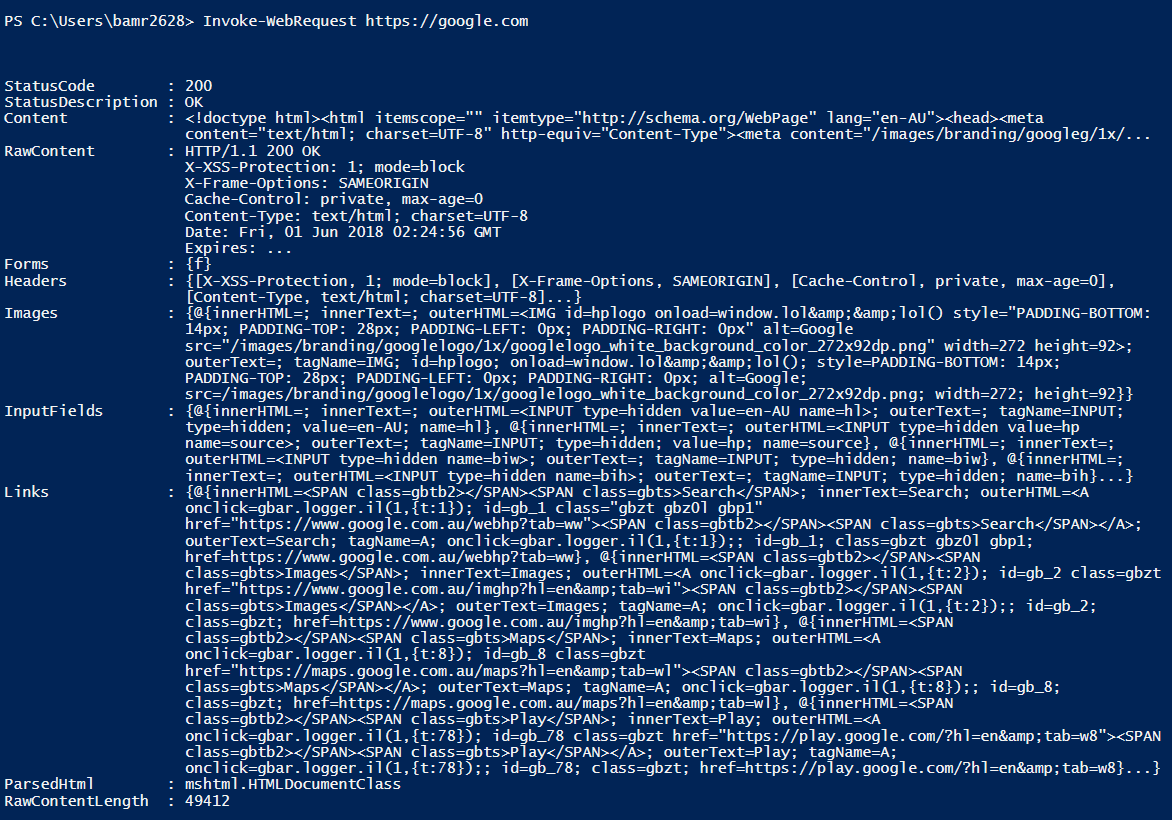
This command is used to get the content from a web page by sending the HTTP or HTTPS requests to that page. In other words, you can simple parse or scrape a web page for images, links, etc.

In response, you will see a parsed result including status code, links, images, input fields, etc.

Invoke-WebRequest <Uri>

Example:

Invoke-WebRequest https://google.com

Output

SSL/TLS

By default, PowerShell uses TLS 1.0 for HTTP / HTTPS requests.

You can easily check the TLS version of any website.

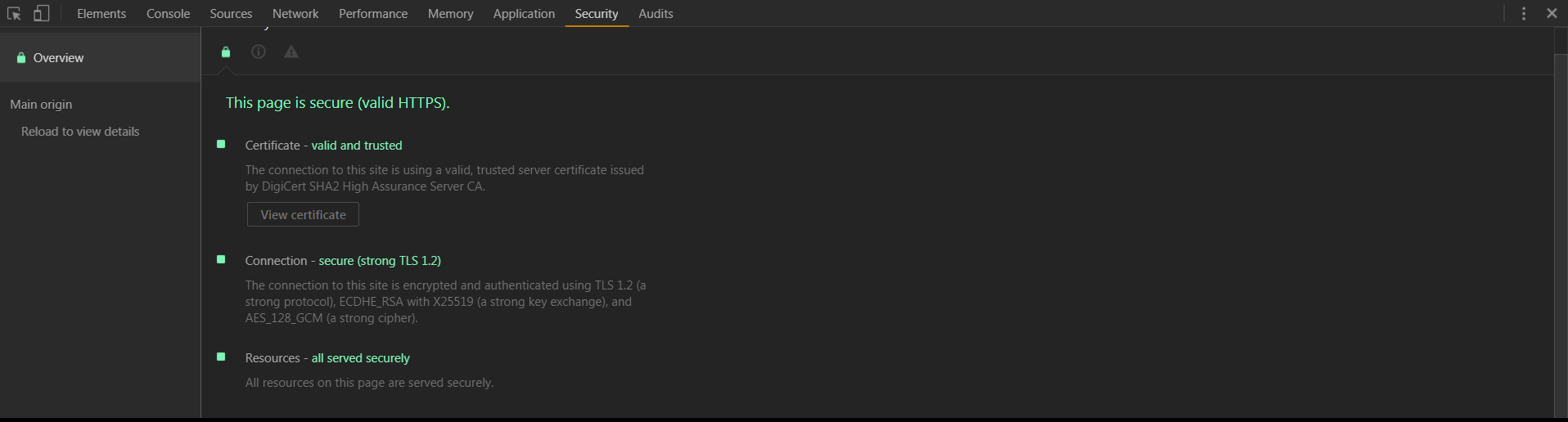
Google Chrome – Click F12 > Go to Security Tab

tls

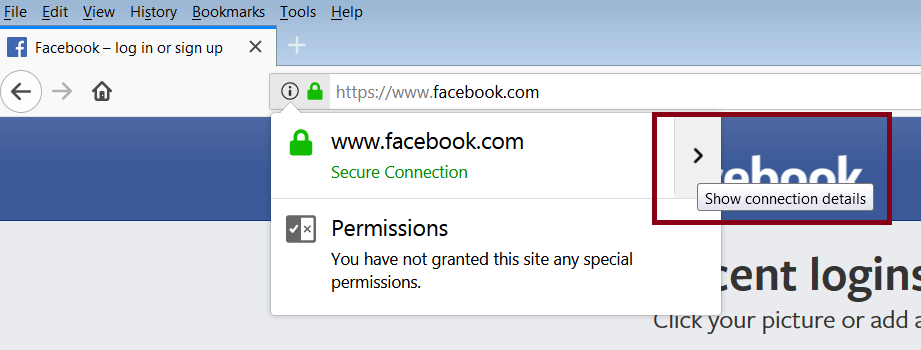
Mozilla Firefox – Click on the padlock icon on the left of address bar and then click on the right arrow as shown below.

fb

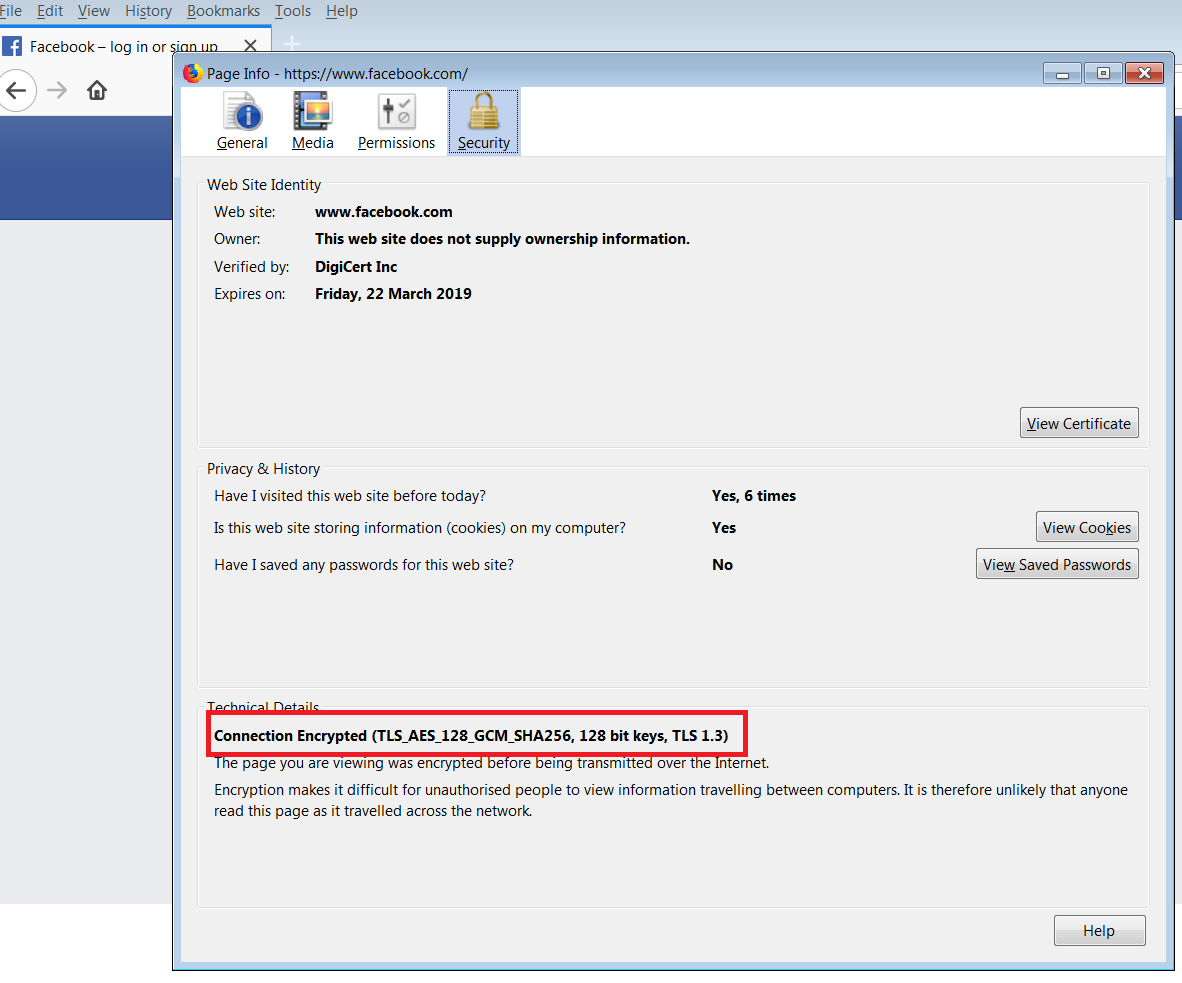
Click on more information and you will see a popup with TLS version.

tlsver

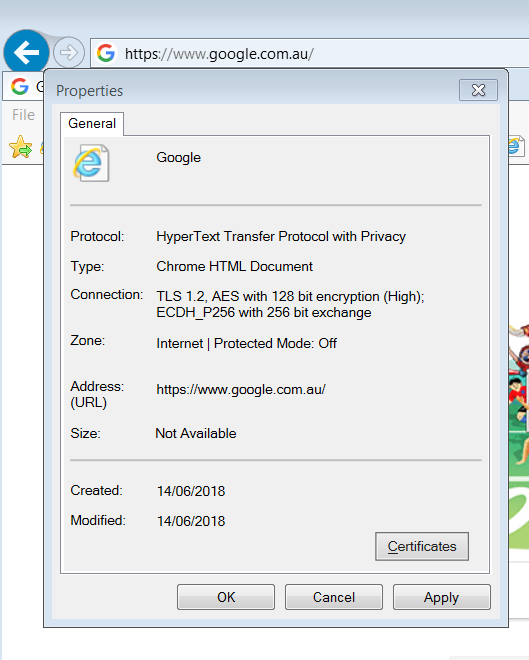
Internet Explorer – Open a website > Right click on page > Click on Properties

ie

Not all the websites use TLS 1.0 and it is not possible to establish a secure connection to a website using different TLS version.

error

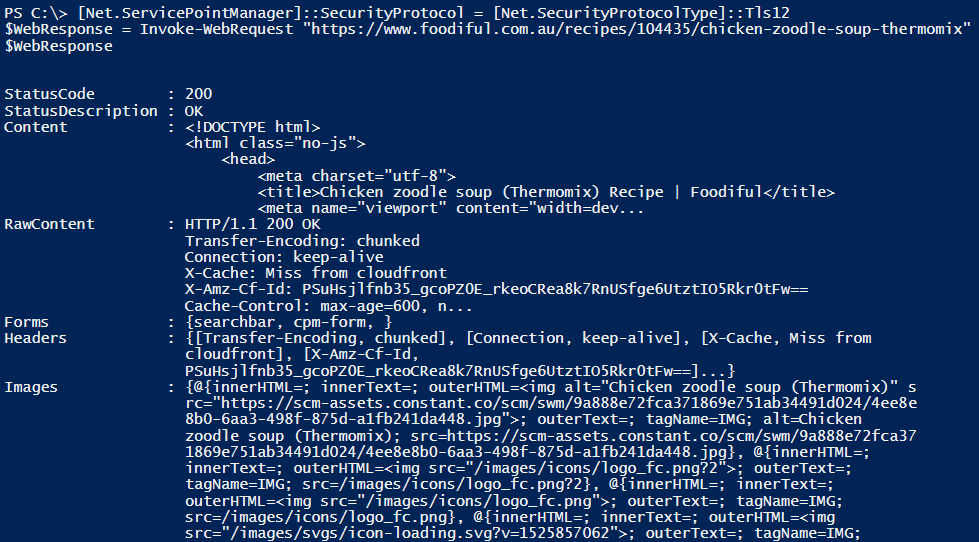
So in order to make HTTP or HTTPS calls using Invoke-WebRequest, you have to force PowerShell to use a different version (eg. TLS 1.2)

# Forcing PowerShell to use TLS 1.2

[Net.ServicePointManager]::SecurityProtocol = [Net.SecurityProtocolType]::Tls12

Example:

1

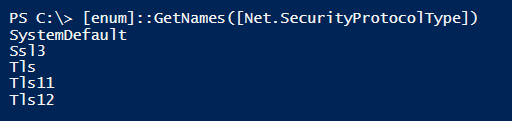
If you are wondering, which versions you can use with PowerShell, then simply use the following cmdlet

[enum]::GetNames([Net.SecurityProtocolType])

ver