Featured

How to create pipeline in Jenkins

Creating a Jenkins pipeline involves defining a script that specifies the entire build process, including stages, steps, and conditions. Jenkins Pipeline can be created using either Declarative or Scripted syntax. Below, I’ll provide a simple example using both syntaxes.

Declarative Pipeline:

pipeline {
    agent any
    
    stages {
        stage('Build') {
            steps {
                echo 'Building the project'
                // Your build steps go here
            }
        }
        
        stage('Test') {
            steps {
                echo 'Running tests'
                // Your test steps go here
            }
        }
        
        stage('Deploy') {
            steps {
                echo 'Deploying the application'
                // Your deployment steps go here
            }
        }
    }
}

In this example:

  • agent any specifies that the pipeline can run on any available agent.
  • stages define the different phases of the pipeline.
  • Inside each stage, you have steps where you define the tasks to be executed.

Scripted Pipeline:

Scripted pipelines use a more programmatic approach with a Groovy-based DSL. Here’s an example:

node {
    // Define the build stage
    stage('Build') {
        echo 'Building the project'
        // Your build steps go here
    }

    // Define the test stage
    stage('Test') {
        echo 'Running tests'
        // Your test steps go here
    }

    // Define the deploy stage
    stage('Deploy') {
        echo 'Deploying the application'
        // Your deployment steps go here
    }
}

In this example:

  • node specifies that the entire pipeline will run on a single agent.
  • Inside each stage, you have the code for the corresponding tasks.

Pipeline Setup in Jenkins

  1. Install the Docker Pipeline Plugin:
    • Navigate to “Manage Jenkins” > “Manage Plugins” in the Jenkins Classic UI.
    • Switch to the “Available” tab, search for “Docker Pipeline,” and check the box next to it.
    • Click “Install without restart.”
  2. Restart Jenkins:
    • After installing the Docker Pipeline Plugin, restart Jenkins to ensure the plugin is ready for use.
  3. Create a Jenkinsfile in Your Repository:
    • Copy the above script (declarative or scripted) to a file named ‘Jenkinsfile’.
  4. Create a New Multibranch Pipeline in Jenkins:
    • In the Jenkins Classic UI, click on “New Item” in the left column.
    • Provide a name for your new item (e.g., My-Pipeline).
    • Select “Multibranch Pipeline” as the project type.
    • Click “OK.”
  5. Configure Repository Source:
    • Click the “Add Source” button.
    • Choose the type of repository you want to use (e.g., Git, GitHub, Bitbucket) and fill in the required details (repository URL, credentials, etc.).
  6. Save and Run Your Pipeline:
    • Click the “Save” button.
    • Jenkins will automatically detect branches in your repository and start running the pipeline.

This is a very basic example. Depending on your project, you may need to add more advanced features, such as parallel execution, input prompts, error handling, and integration with external tools.

Make sure to refer to the official Jenkins Pipeline documentation for more in-depth information and advanced features.
Featured

How to search from an XML column in SQL

Search from an xml column in sql

<ArticlePage>
  <publishDate><![CDATA[201612151611499007]]></publishDate>
  <category><![CDATA[1000004]]></category>
</ArticlePage>
SELECT *
  FROM [Table_Name]
  where CAST([xml] as XML).value ('(/ArticlePage/category)[1]', 'varchar(max)') like '1000004'
Featured

How to connect to SQL database from Lambda using Nodejs

To connect to SQL database from lambda, I am using Nuget package ‘mssql’.

For this, I have created a serverless application using Nodejs 16.x.

To connect to SQL database from lambda, I am using Nuget package ‘mssql’.

In your serverless application, install mssql like below –

npm install mssql

Usage

I am using Typescript and DBConfig used above is just an interface.
Also replace all the config with your database credentials.

import sql from "mssql";

const config : DBConfig = {
 user: ${process.env.DB_USER},
 password: ${process.env.DB_PASSWORD},
 server: ${process.env.DB_SERVER},
 database: ${process.env.DATABASE},
 options: {
  trustServerCertificate: true,
 },
};

export const run = async () => {
 try {
  await sql.connect(config);
  const result = await sql.query`Select * from [TableName]`;
  var result = result.recordset;
}
catch (err) {
 console.error("Error:", err);
 return {
  statusCode: 500,
  body: JSON.stringify({
  message: "Error accessing the database.",
  error: err,
  }),
 };
}
}

Please note that the RDS and lambda should be in same VPC settings. If while running lambda, you get a timeout error, do verify the VPC settings for both RDS and lambda. If they are in different VPC, then you have to do further settings. Please refer to AWS documentation for that.

Also make sure the IAM role in lambda should have permission to access RDS

Refer to this if you are looking to send an email with attachment from lambda.

Featured

Updating .NET framework

Follow the below steps before updating the .NET framework.

I updated from 4.5.1 to 4.6.2

  • Update all the DLLs or NuGet packages used in the project to the latest version
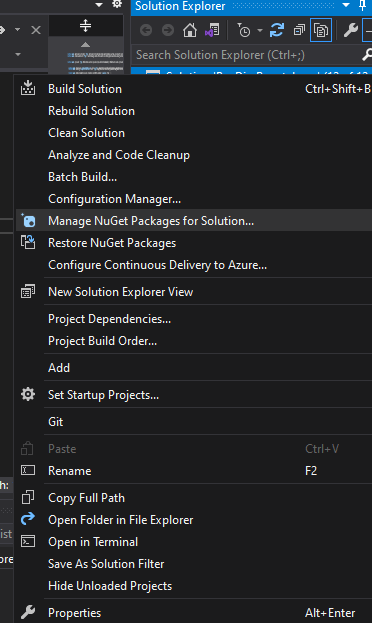
  • Right click on the solution and select Manage NuGet packages for Solution

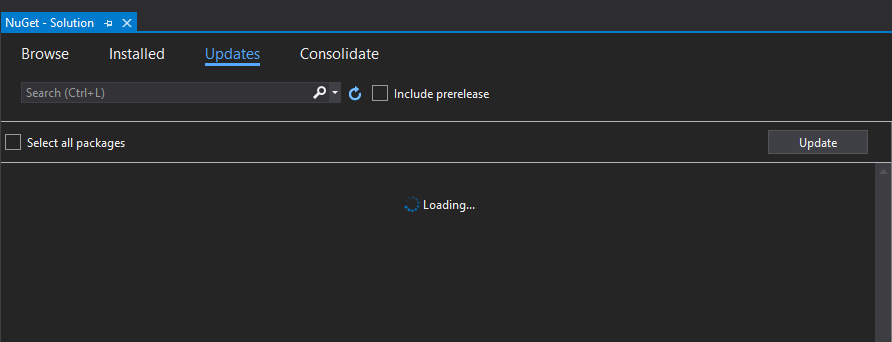
  • Update any packages coming under the update tab

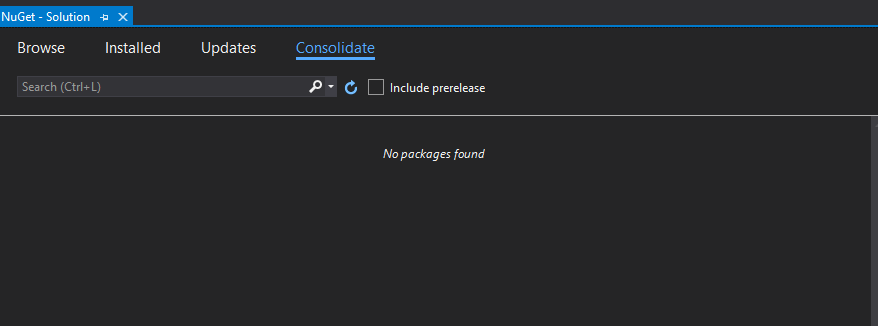
  • Consolidate any packages coming under the Consolidate tab. This is to make sure you have the same NuGet package version in all the projects

Once you do the above steps, follow the below steps –

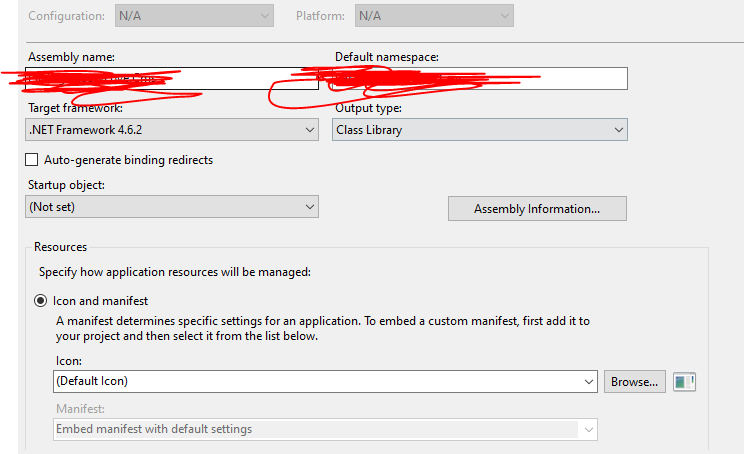
  1. Right click on each of the project and click Properties. Select the .Net framework version from the Target Framework dropdown as below

2. After updating the framework version for each of the project, you need to target each of the package in packages.config to the new framework version. For this, just run the below command in package manager console –

Update-Package -Reinstall
Featured

Convert JSON to csv in C#

Convert JSON to csv in C#

  • Given users.json as the json file
using (var csv = new ChoCSVWriter("users.csv").WithFirstLineHeader())
{
   using (var json = new ChoJSONReader("users.json") 
      .WithField("Username")
      .WithField("Sub", jsonPath: "$.Attributes[?(@.Name == 'sub')].Value", isArray: true)
      .WithField("EmailVerified", jsonPath: "$.Attributes[?(@.Name == 'email_verified')].Value", isArray: true)
      .WithField("GivenName", jsonPath: "$.Attributes[?(@.Name == 'given_name')].Value", isArray: true)
      .WithField("FamilyName", jsonPath: "$.Attributes[?(@.Name == 'family_name')].Value", isArray: true)
      .WithField("Email", jsonPath: "$.Attributes[?(@.Name == 'email')].Value", isArray: true)
      .WithField("UserCreateDate")
      .WithField("UserLastModifiedDate")
      .WithField("Enabled")
      .WithField("UserStatus")
   )
{
   csv.Write(json);
}
}
Featured

Check if the string is valid JSON in C#

C# validate json string

public static bool IsJsonString(string str)
{
     if (string.IsNullOrWhiteSpace(str)) { return false; }
     str = str.Trim();
     if ((str.StartsWith("{") && str.EndsWith("}")) || 
         (str.StartsWith("[") && str.EndsWith("]")))
      {
         try
         {
            var obj = JToken.Parse(str);
            return true;
          }
          catch (JsonReaderException jex)
          {
             return false;
          }
          catch (Exception ex) //some other exception
          {
             return false;
          }
      }
      else
      {
         return false;
      }
 }
Featured

Export Cognito Users from AWS Using AWS CLI

Export Cognito Users in AWS

As of today, there is no way to directly export users from Cognito in AWS.

But we can use AWS CLI or AWS SDK to get the list of users.

  • First step is to install AWS CLI on your machine

Click here to download and install AWS CLI

  • Next, step is to set up AWS on your machine. To do this, open cmd (command prompt) and do the following –
$ aws configure
AWS Access Key ID [None]: YourAccessKeyId
AWS Secret Access Key [None]: YourSecretAccessKey
Default region name [None]: YourRegion
Default output format [None]: json

Replace the above with your values. For more info, click here.

  • To get the list of all users in Cognito, run the following command
aws cognito-idp list-users --region <region> --user-pool-id <userPoolId> 
--output json > users.json

The above will return the list of users in a JSON format. If you want to get the result in a table format, run the next command

aws cognito-idp list-users --region <region> --user-pool-id <userPoolId>  --output table > users.txt
  • Now if you want to convert the result json to csv. Use the following code snippet.
private static void ConvertJsonToCsv()
{
 using (var csv = new ChoCSVWriter("users.csv").WithFirstLineHeader())
 {
   using (var json = new ChoJSONReader("CognitoUsers.json")
             .WithField("Username")
             .WithField("Email", jsonPath: "$.Attributes[?(@.Name == 
              'email')].Value", isArray: true)
             .WithField("UserStatus")
         )
  {
     csv.Write(json);
  }
 }
}

Featured

How to replace space with underscore in an xml file using Notepad++

It is very easy to achieve this using a regex expression. Suppose we have below in an xml file and we want to replace the space inside DisplayName node with underscore.

Sample xml –

<User id="11068577">
	<UserId>11068577</UserId>
	<DisplayName>Dolcese Vita</DisplayName>
	<Address>Texas, US</Address>
</User>
  1. Open Notepad++
  2. Click Ctrl+H to open replace dialog box
  3. Add below in Find What:
(?i)(<DisplayName>.*?)[\s](?=.*</DisplayName>)

4. Add below in Replace with:

\1_\2

5. Result –

<User id="11068577">
	<UserId>11068577</UserId>
	<DisplayName>Dolcese_Vita</DisplayName>
	<Address>Texas, US</Address>
</User>


Interested in Cryptocurrency. Register and start investing here

Earn a side income by affiliate marketing. Learn here how to do it.

Featured

Restore Azure Database (.bacpac) file to SQL Server (.bak) file

Azure Sql Database is a fully managed relational database that provisions quickly, scales on the fly and includes built-in intelligence and security as well.

Azure Sql Database is a fully managed relational database that provisions quickly, scales on the fly and includes built-in intelligence and security as well.

Below are the steps to restore the database from .bacpac (Azure DB backup) file to .bak (SQL DB backup) file

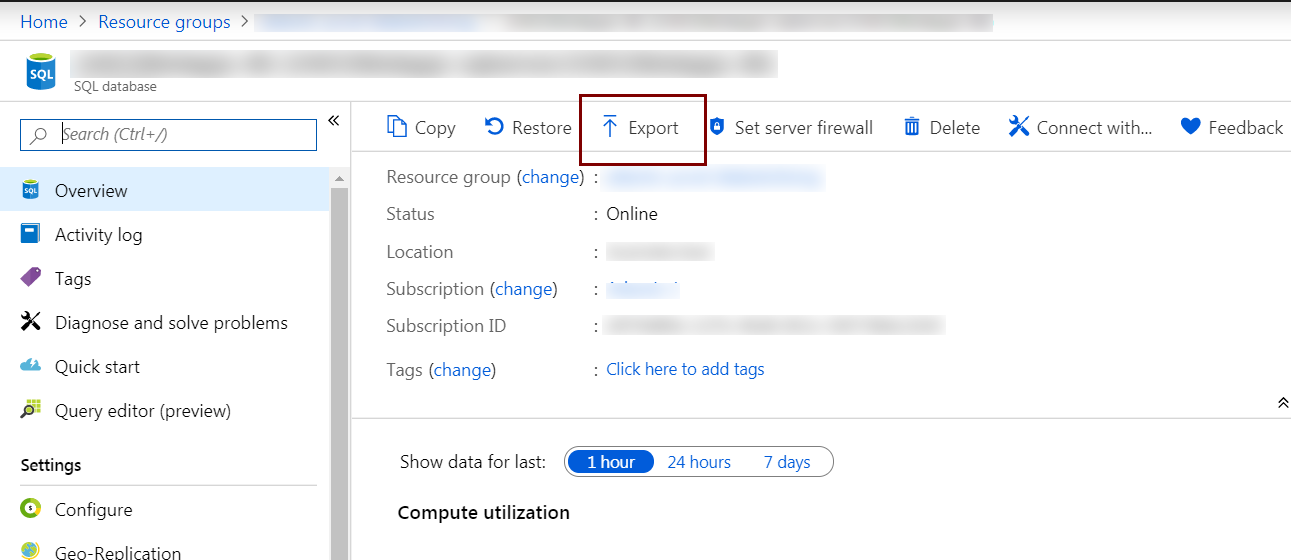
  1. The first step is to export the Azure DB. For this, you need to login to your Azure portal and go to SQL database in your resource group. Click Export as shown below.


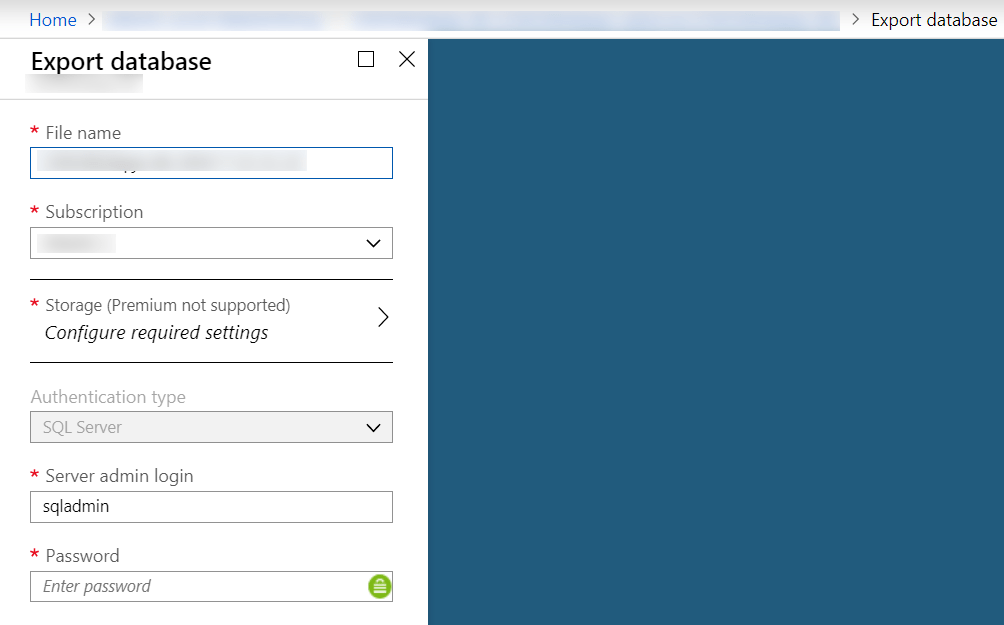
  2. After clicking on Export, you have to select the storage location and add the credentials as shown below.
    This process will take few minutes to finish depending on your database size.


    Note: It is good to select the storage location (blob storage) in the same resource group, if you have multiple resource groups


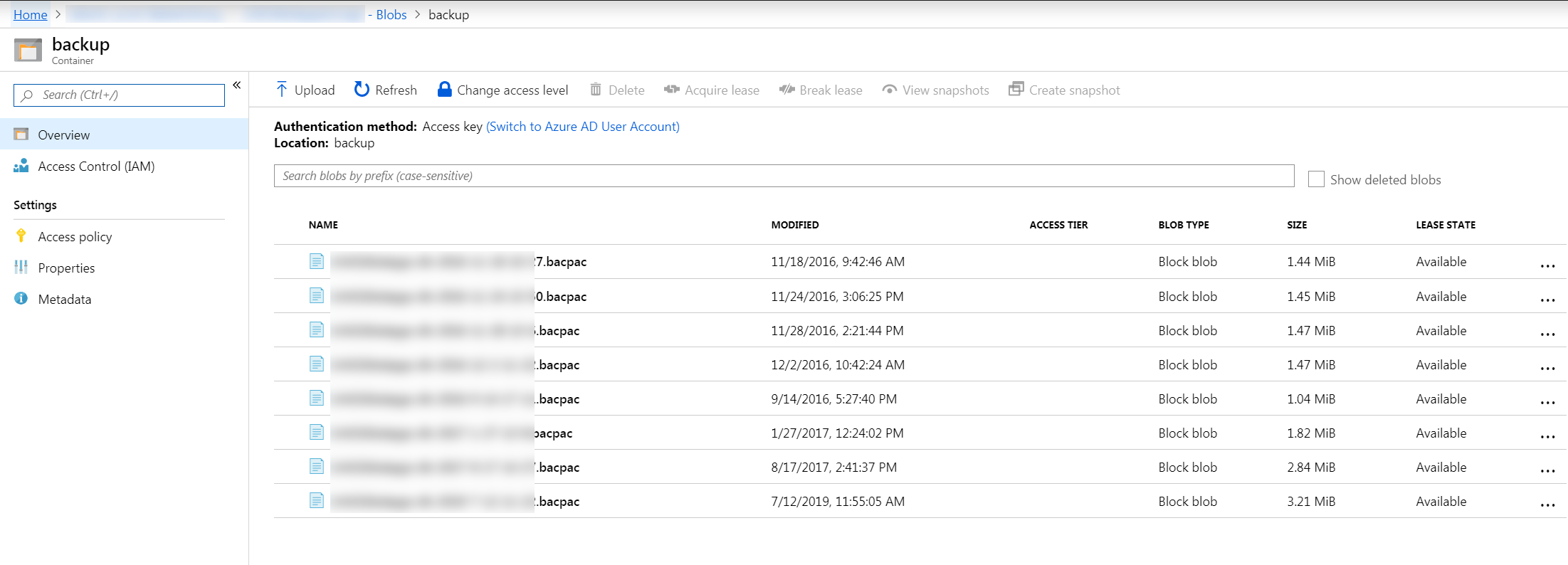
  3. After the export is finished, you will get the exported file as a .bacpac file in your selected storage. (In my case, it is blob storage container)


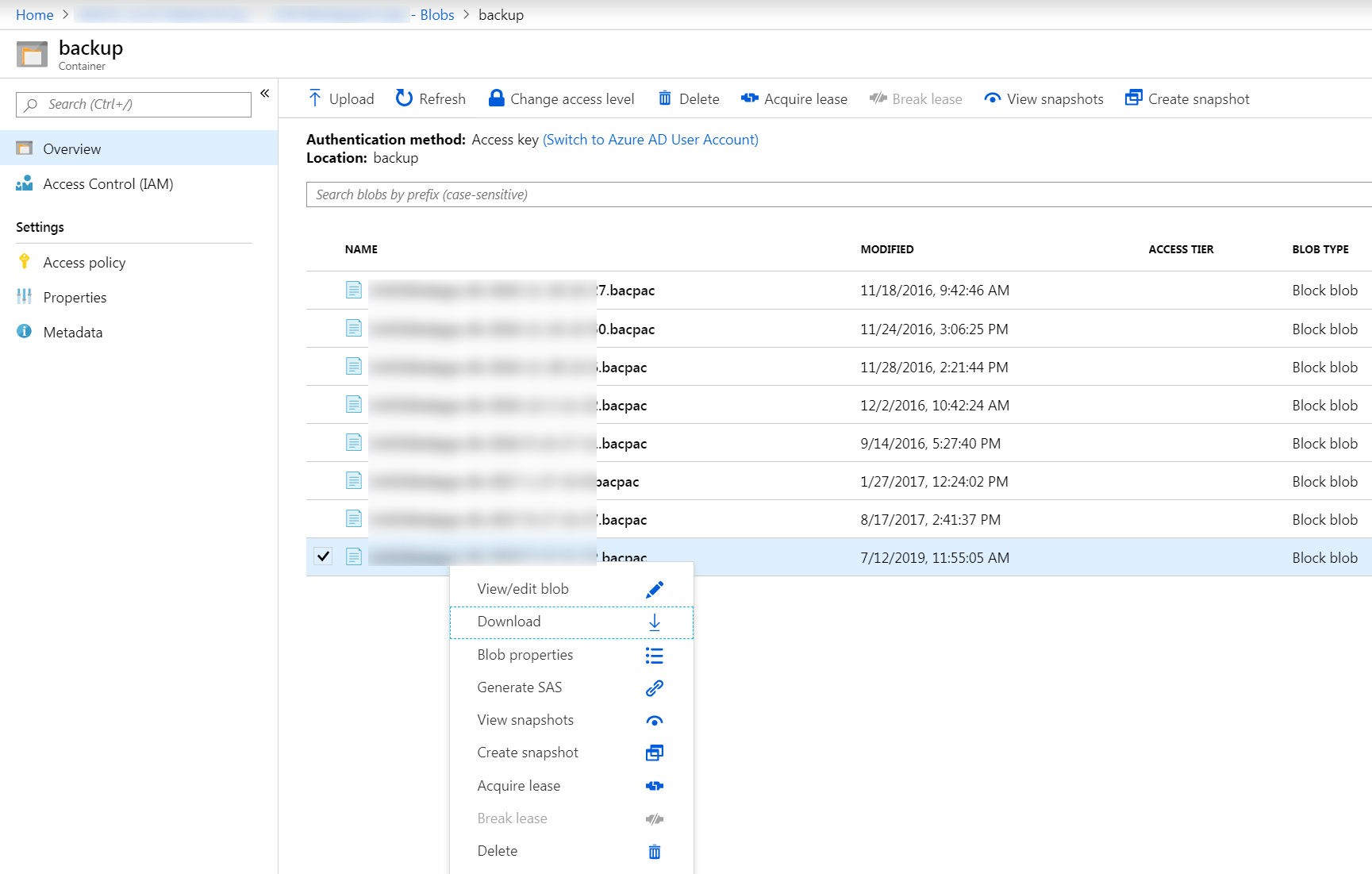
  4. Right-click on the .bacpac file you just created and download it locally


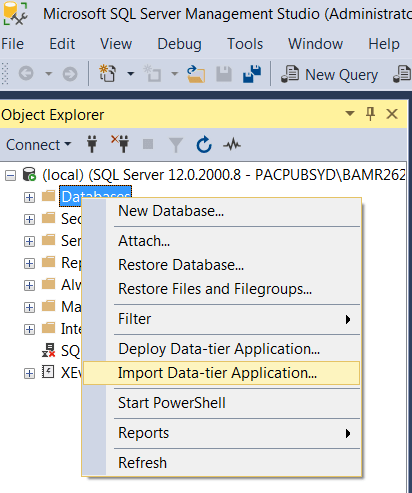
  5. The next step is to create .bak file from the .bacpac file you just downloaded. For this, you need to open SQL Server Management Studio (I am using SQL Server Management Studio v17.9.1).
    Right-click on Databases and select Import Data-tier Application.


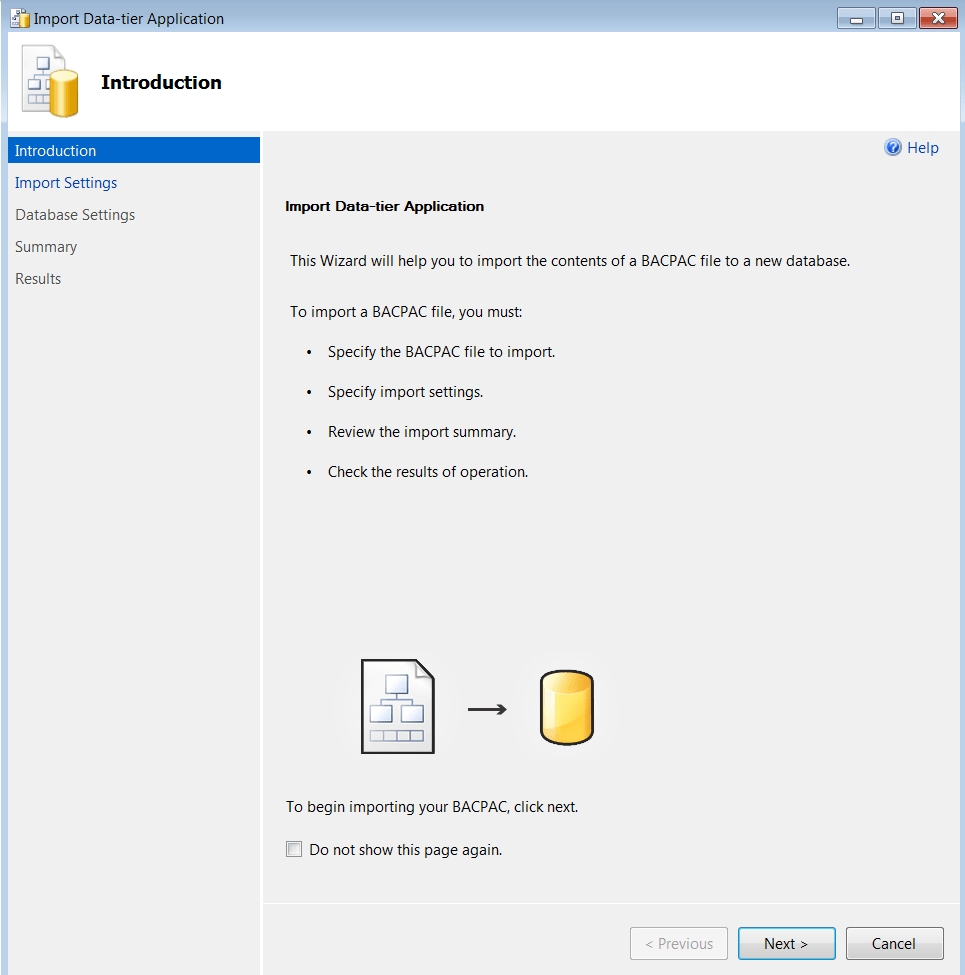
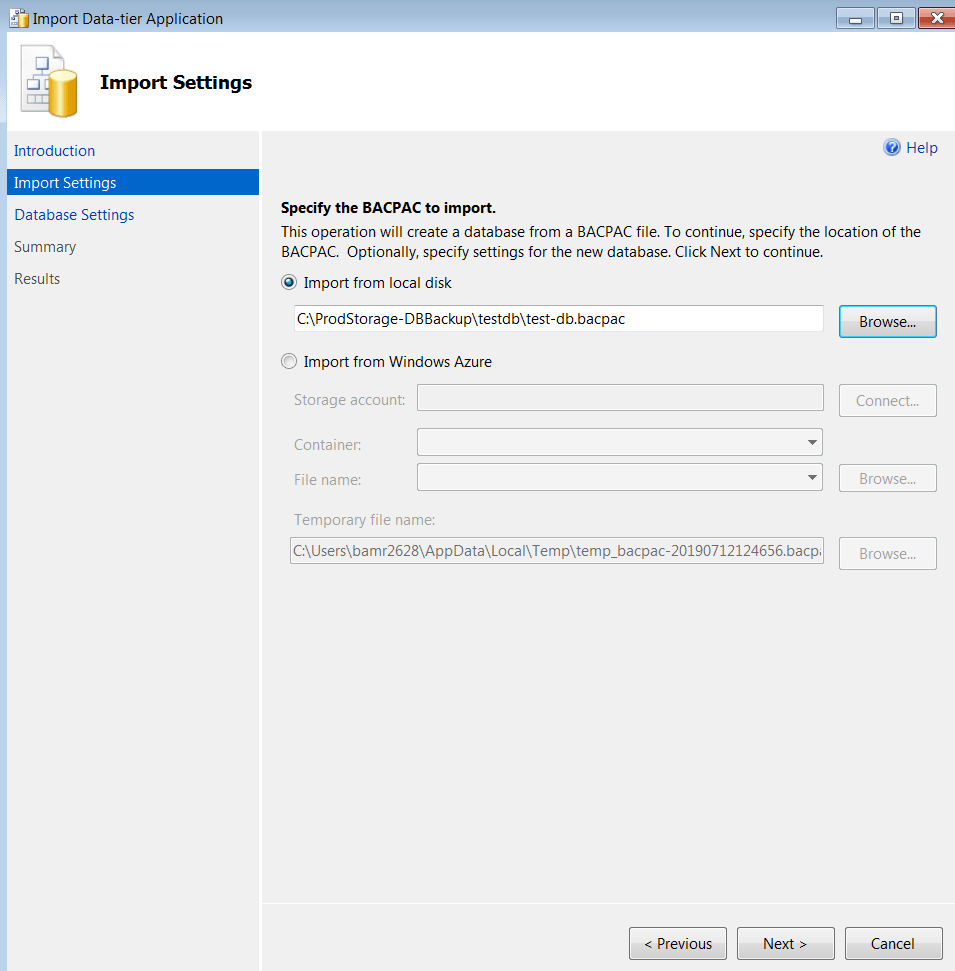
    You will see the below screen. Now, click Next.


  6. Click on Browse and select the .bacpac file you downloaded from Azure in the previous step and click Next as shown below –


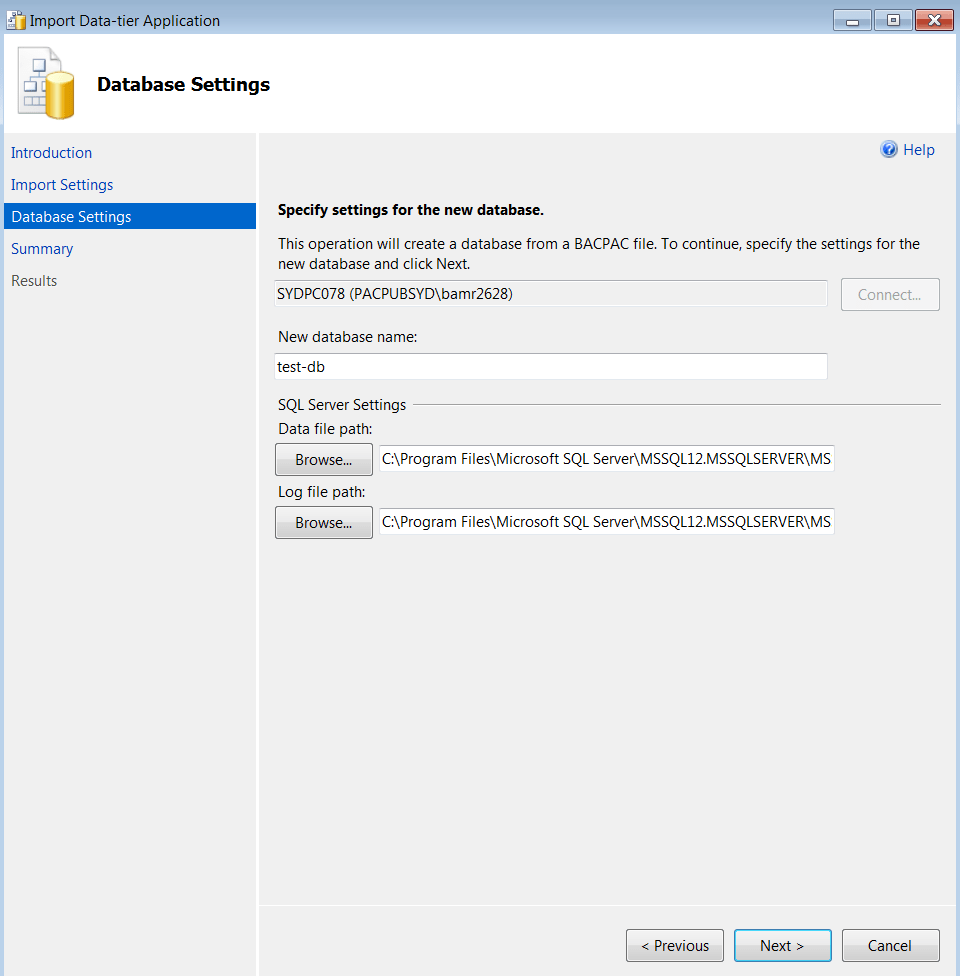
  7. Here you can change the database name or can keep the same name as your .bacpac file.
    You can leave the other settings as it is and just click Next again.


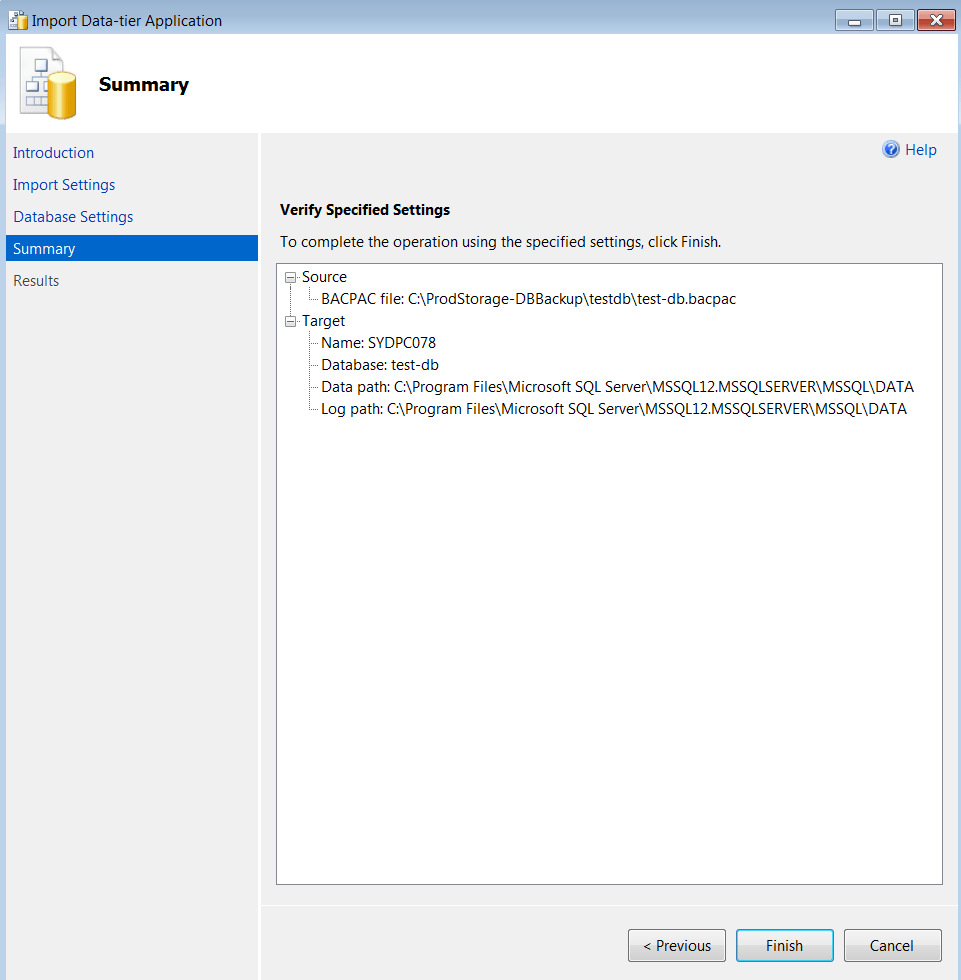
  8. Now, you can verify all the settings below and click Finish or you can click Previous and go back to the previous settings if you want to change anything.


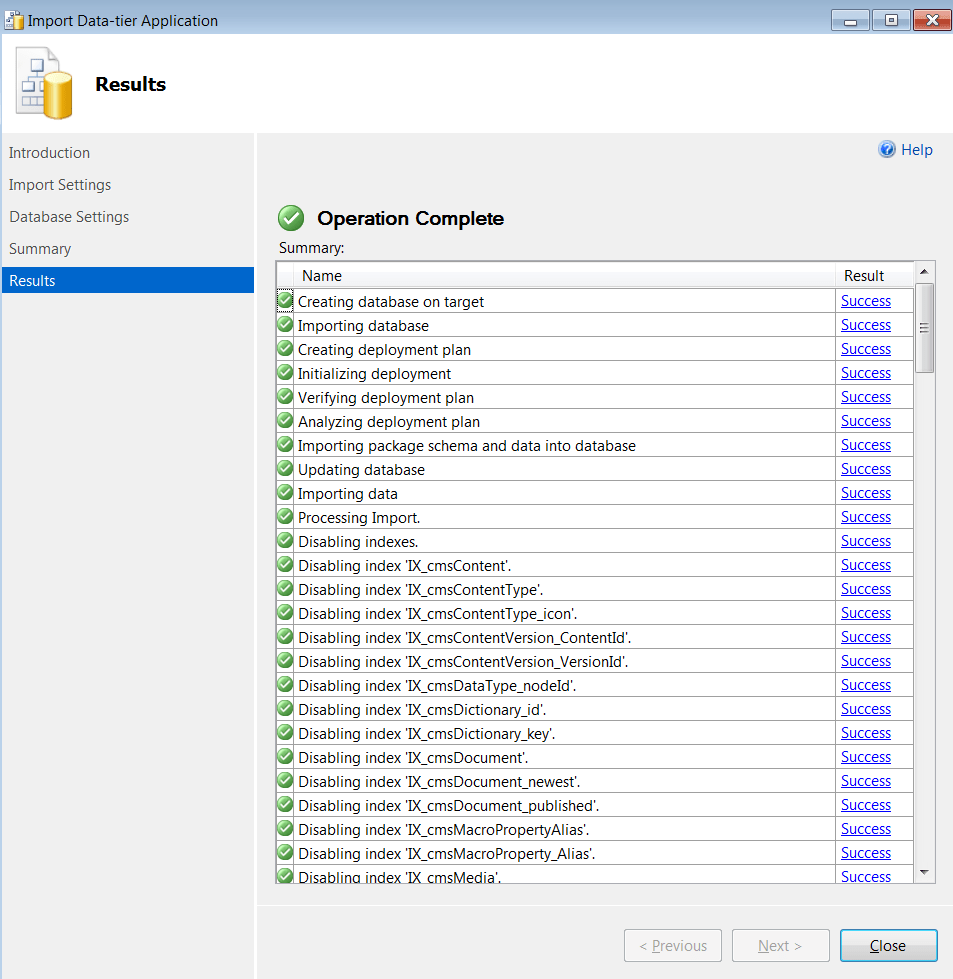
  9. Now you will see the progress and once it is finished, you will see the below Operation Complete screen. If there is any error, you can click on that and see what is wrong, else you will get all Success


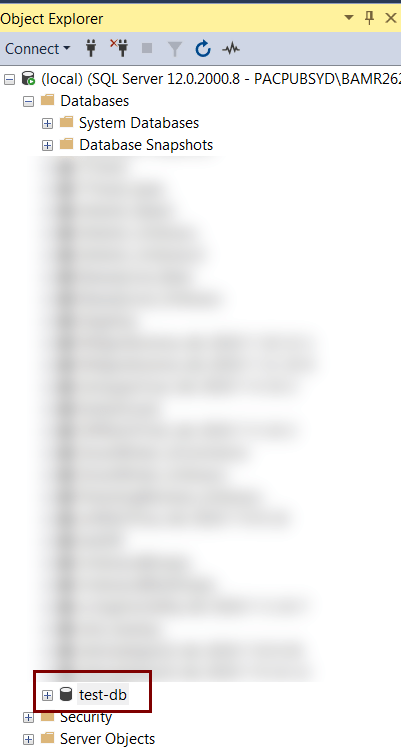
  10. You can see the newly restored database under the Databases folder.


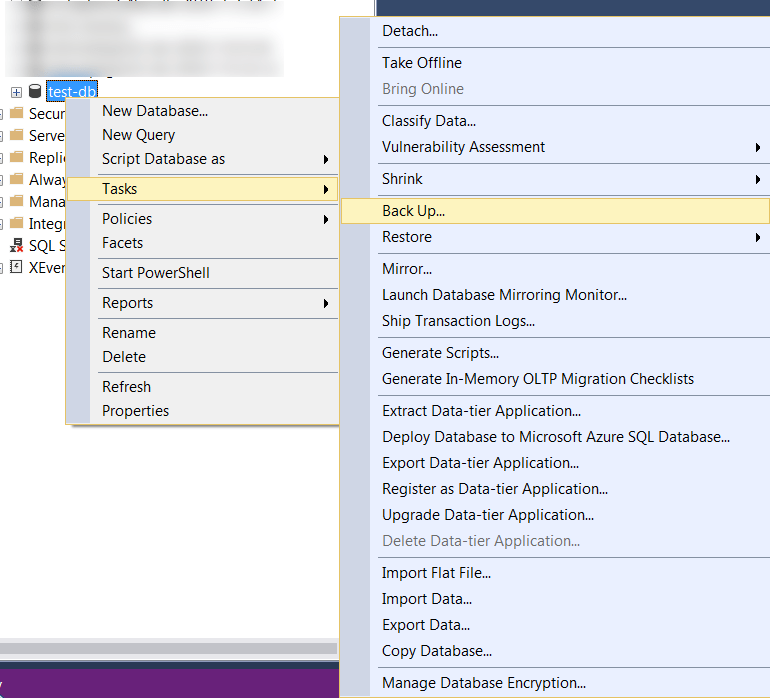
  11. The next step is to create the .bak file.
    For this, right-click on the new DB and select Tasks -> Back Up… as shown below –


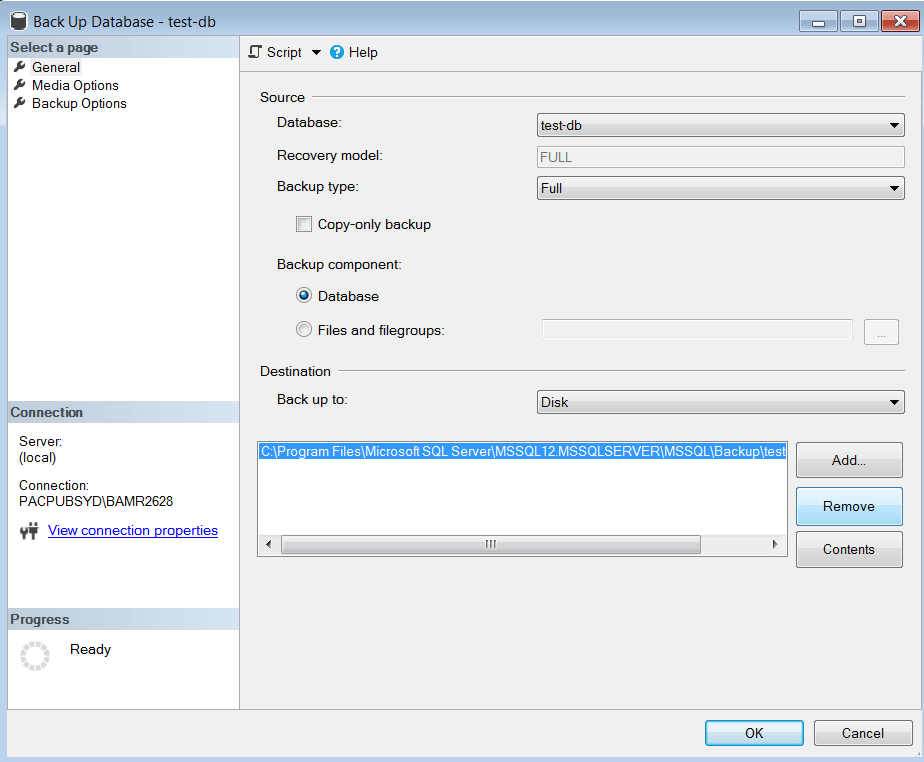
  12. Now, you will see the below screen.
    Remove the destination path that is pre-selected by clicking Remove as shown below.
    And then click on Add to select the path where you want to store your .bak file.


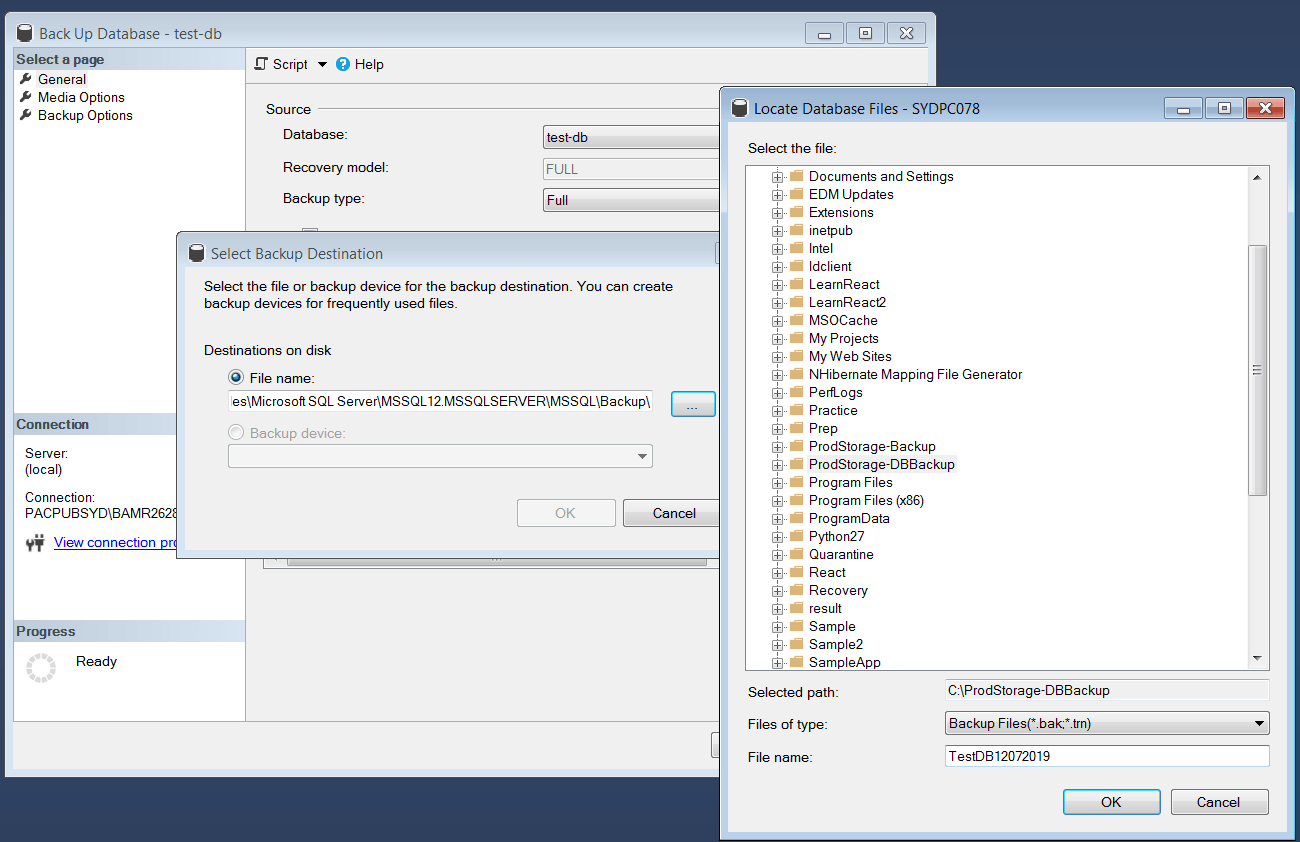
  13. After clicking on Add, you will see the screen below.
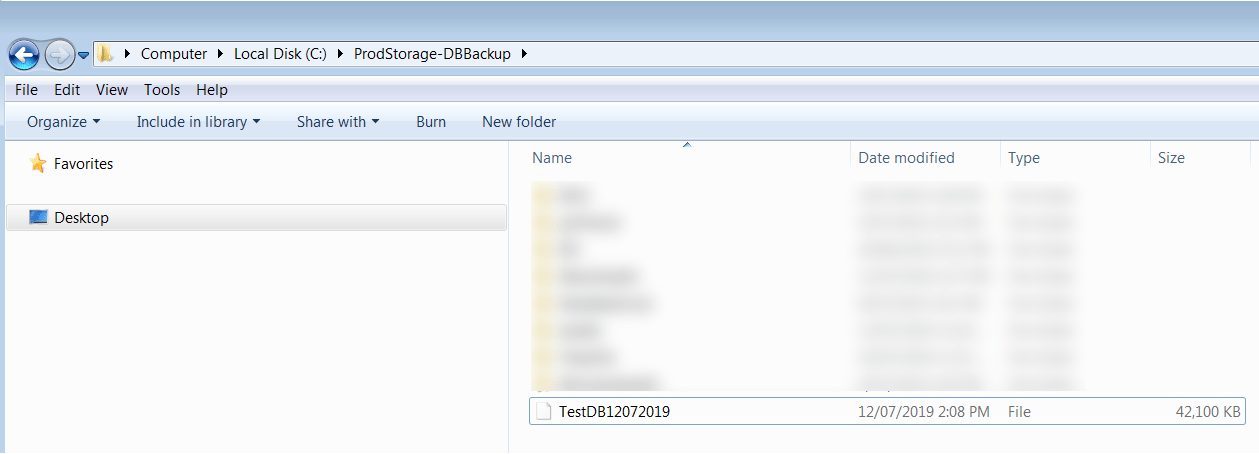
    Select the destination path/folder and add the desired File name. I have added TestDB12072019.


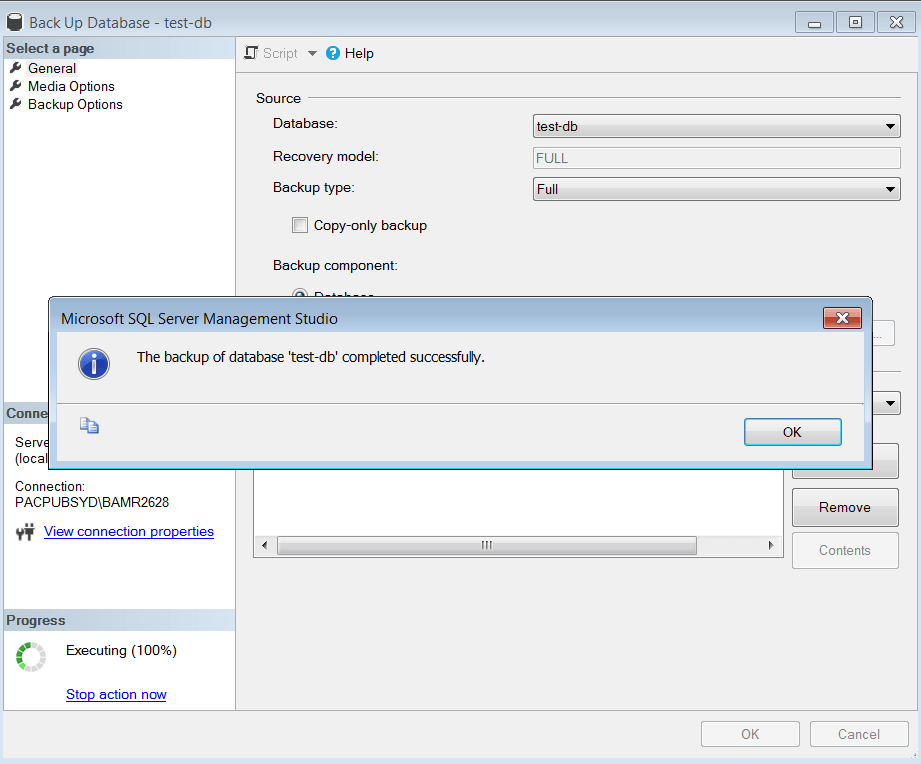
  14. Click OK and you will see it executing. Once 100% completed, you will see the following screen –


    Thats’s it! You have created SQL Server .bak file from Azure database .bacpac file.

    Now you can see the .bak file in the folder path you selected.


    Please leave a comment, if you have any questions.

Interested in Cryptocurrency. Register and start investing here

Earn a side income by affiliate marketing. Learn here how to do it.

Build Your First REST API with Node.js

REST APIs are the backbone of modern web and mobile applications. If you’re learning backend development, building a REST API using Node.js is one of the best places to start.

In this guide, you’ll learn how to build your first REST API in Node.js using Express.js, with simple examples you can run locally.


Prerequisites

Before starting, make sure you have:

  • Basic JavaScript knowledge
  • Node.js installed
  • A code editor (VS Code recommended)

Check Node.js installation:

node -v
npm -v


What Is a REST API?

A REST API allows applications to communicate with each other using HTTP methods:

  • GET – Fetch data
  • POST – Create data
  • PUT – Update data
  • DELETE – Remove data

REST APIs usually return data in JSON format.


Step 1: Create a New Node.js Project

Create a folder and initialize your project:

mkdir my-first-api
cd my-first-api
npm init -y

This creates a package.json file.


Step 2: Install Required Packages

We’ll use Express.js, a popular Node.js framework.

npm install express

Optional (for auto restart):

npm install nodemon --save-dev


Step 3: Create the Server File

Create a file named index.js:

const express = require('express');
const app = express();

app.use(express.json());

const PORT = 3000;

app.listen(PORT, () => {
  console.log(`Server running on port ${PORT}`);
});

Run the server:

node index.js

Visit 👉 http://localhost:3000


Step 4: Create Your First API Route

Add a GET API:

app.get('/', (req, res) => {
  res.json({ message: 'Welcome to my first REST API!' });
});

Now open the browser:

http://localhost:3000/

You’ll see JSON output


Step 5: Create a GET API (Fetch Data)

Let’s return a list of users:

app.get('/users', (req, res) => {
  const users = [
    { id: 1, name: 'John' },
    { id: 2, name: 'Sara' }
  ];
  res.json(users);
});

URL:

GET /users


Step 6: Create a POST API (Add Data)

app.post('/users', (req, res) => {
  const user = req.body;
  res.status(201).json({
    message: 'User created',
    user
  });
});

Test using Postman or Thunder Client:

POST /users
{
  "name": "Alex"
}


Step 7: Create PUT API (Update Data)

app.put('/users/:id', (req, res) => {
  res.json({
    message: `User ${req.params.id} updated`
  });
});


Step 8: Create DELETE API

app.delete('/users/:id', (req, res) => {
  res.json({
    message: `User ${req.params.id} deleted`
  });
});


Step 9: Test Your API

You can test APIs using:

  • Postman
  • Thunder Client (VS Code extension)
  • curl command

Suggested Project Structure (Beginner)

my-first-api
│
|--- index.js
|--- package.json
|--- node_modules

As your app grows, you can separate routes, controllers, and services.

Best Practices for Node.js REST APIs

  • Use environment variables
  • Validate input
  • Use async/await
  • Add logging

Frequently Asked Questions

Is Node.js good for REST APIs?

Yes, Node.js is widely used…

Which framework is best for Node.js REST API?

Express.js is the most popular…

Can beginners learn REST API in Node.js?

Absolutely…

Top 10 AI Tools to Boost Your Productivity

Discover the best AI tools for daily work that boost productivity, save time, and make tasks easier for professionals and students.

Artificial Intelligence isn’t just buzz – it’s a powerful productivity booster you can use every day. From writing faster to managing tasks smarter, these AI tools help professionals, students, and creators work better with less effort.


1. ChatGPT – AI Assistant for Everything

What it does:
An AI you can chat with to write emails, brainstorm ideas, summarize documents, solve problems, and learn new topics.

Best for: Writing help, coding support, research, quick answers

Why it shines:

  • Natural language responses
  • Works for both casual questions and complex tasks
  • Saves hours on writing and planning

2. Grammarly – Smarter Writing

What it does:
Corrects spelling & grammar, improves tone, and suggests clearer phrasing.

Best for: Emails, reports, blog posts, social media content

Why it shines:

  • Real-time writing suggestions
  • Tone and clarity improvements
  • Easy browser & document integration

3. Notion AI – Planner + Assistant

What it does:
Built into Notion’s workspace, this AI helps you brainstorm, write content, summarize notes, and plan projects.

Best for: Daily planning, team collaboration, note summarization

Why it shines:

  • Combines task management with AI
  • Great for personal & team use
  • Helps you turn messy notes into structured content

4. Canva AI – Design Without Skills

What it does:
AI tools built into Canva generate images, write captions, suggest layouts, and improve designs.

Best for: Social posts, graphics, banners, presentations

Why it shines:

  • Drag-and-drop simplicity
  • AI text and image generation features
  • Huge library of templates

5. Otter.ai – Smart Meeting Notes

What it does:
Automatically transcribes meetings and summarizes key points.

Best for: Work calls, lectures, interviews

Why it shines:

  • Accurate real-time transcription
  • Shareable summaries
  • Saves time re-listening to recordings

6. Trello + AI – Smarter Boards

What it does:
Trello’s AI helps automate task prioritization, generate ideas, and simplify planning.

Best for: Project tracking, personal to-dos

Why it shines:

  • Visual boards you can customize
  • AI suggestions keep you organized

7. Zapier AI – Automate Repetitive Tasks

What it does:
Connects apps and automates workflows (e.g., save attachments to cloud, send alerts, update spreadsheets).

Best for: Repetitive tasks, cross-app automation

Why it shines:

  • Works with 5,000+ apps
  • Saves hours on manual work

8. Jasper – AI for Content Creators

What it does:
Helps you write blog posts, ads, social media text, descriptions, and more.

Best for: Marketers, bloggers, creators

Why it shines:

  • Templates for different content types
  • Tone and style customization

9. AI Search Tools (Perplexity, You.com)

What they do:
Provide AI-enhanced search with concise answers, citations, and summaries.

Best for: Quick research and fact gathering

Why they shine:

  • Better than traditional search for quick comprehension
  • Saves time digging through multiple pages

10. AI Email Assistants (e.g., Superhuman AI)

What they do:
Generate replies, summarize threads, prioritize messages.

Best for: Busy professionals

Why they shine:

  • Faster inbox management
  • Smarter response suggestions

How to Pick the Right AI Tools

🔹 Start with your need: Writing? Planning? Meetings?
🔹 Don’t overload: Use a few tools deeply rather than many lightly
🔹 Test free versions first: Most offer free tiers
🔹 Combine tools: ChatGPT + Grammarly + Canva covers most daily tasks

Building Workflows with AWS Lambda and Step Functions

Step Functions and Lambda are two key services within the AWS ecosystem that work seamlessly together to create complex, stateful workflows.

What are Step Functions?

  • A visual workflow service: Step Functions allows you to define workflows as a series of steps. Each step can be a task, a choice, or a wait.
  • State machines: These workflows are defined as state machines, which can be executed and managed.
  • Integration with other AWS services: Step Functions integrates with a wide range of AWS services, including Lambda, ECS, and DynamoDB.

What is Lambda?

  • Serverless compute service: Lambda lets you run code without provisioning or managing servers.
  • Event-driven: Lambda functions are triggered by events, such as API calls, file uploads, or messages from other AWS services.
  • Scalable: Lambda automatically scales to meet demand, ensuring your applications can handle varying workloads.

How Step Functions and Lambda Work Together

  • Lambda as a task: One of the most common use cases is to use Lambda functions as tasks within a Step Functions state machine. When a state machine is executed, the Lambda function associated with that step is invoked.
  • Input and output: Step Functions can pass data between steps, allowing Lambda functions to process and transform data as it flows through the workflow.
  • Error handling: Step Functions provides built-in error handling mechanisms, such as retries and catch blocks, to ensure that your workflows are resilient.

Benefits of Using Step Functions and Lambda

  • Simplified development: Step Functions provides a visual interface for creating and managing workflows, making it easier to build complex applications.
  • Scalability: Lambda’s serverless architecture ensures that your applications can scale to meet demand without requiring manual provisioning of resources.
  • Cost-effectiveness: Step Functions and Lambda are pay-as-you-go services, meaning you only pay for the resources you use.
  • Integration with other AWS services: Step Functions’ ability to integrate with a wide range of AWS services makes it a versatile tool for building complex applications.

Example use case: A common use case is building a data processing pipeline. The pipeline might involve:

  1. Ingesting data from a source like S3 or a database.
  2. Transforming the data using Lambda functions.
  3. Storing the processed data in a destination like S3 or DynamoDB.

In Step Functions, you define your workflow in JSON format. Here’s a simplified example:

{
  "Comment": "An example of a simple order process",
  "StartAt": "Check Inventory",
  "States": {
    "Check Inventory": {
      "Type": "Task",
      "Resource": "arn:aws:lambda:region:account-id:function:CheckInventory",
      "Next": "Process Payment"
    },
    "Process Payment": {
      "Type": "Task",
      "Resource": "arn:aws:lambda:region:account-id:function:ProcessPayment",
      "Next": "Notify Customer"
    },
    "Notify Customer": {
      "Type": "Task",
      "Resource": "arn:aws:lambda:region:account-id:function:NotifyCustomer",
      "End": true
    }
  }
}

Step Functions can be used to define the workflow, with each step representing a specific task or decision point. Lambda functions can be used to perform the actual data processing.

AWS Doc: https://aws.amazon.com/step-functions/

Avoid task failures in ECS/Fixing “Essential container in task exited” error in ECS

In Amazon ECS (Elastic Container Service), the concept of “essential” and “non-essential” containers refers to the importance of specific containers within a task definition. This distinction is used to determine how the task behaves when individual containers exit or fail.

Essential Containers

  • Definition: An essential container is a critical part of the task. If this container stops or exits with an error, the entire task will stop.
  • Behavior: If an essential container fails, ECS will consider the task as failed and will potentially stop all other containers in the task. The task might be restarted or terminated based on the task’s restart policy.
  • Use Case: Essential containers are typically the main components of an application, like a web server, primary service, or a critical process that the task cannot function without.

Non-Essential Containers

  • Definition: A non-essential container is considered supplementary. If this container stops or exits, the task will continue to run as long as all essential containers are running.
  • Behavior: The failure of a non-essential container will not cause the entire task to stop. However, the status of the non-essential container will be reported as stopped.
  • Use Case: Non-essential containers are often used for auxiliary tasks like logging, monitoring, or sidecar containers that provide additional but non-critical functionality.

Example Scenario

Imagine a task with two containers:

  • Container A (Essential): A web server that serves application traffic.
  • Container B (Non-Essential): A logging agent that forwards logs to a remote server.

If Container A fails, the entire task will stop. If Container B fails, the task will continue running, but logs might not be forwarded until the logging container is restarted or replaced.

Configuration

In the ECS task definition JSON, you can specify whether a container is essential or non-essential by setting the essential parameter:

jsonCopy code{
  "containerDefinitions": [
    {
      "name": "web-server",
      "image": "nginx",
      "essential": true
    },
    {
      "name": "log-agent",
      "image": "log-agent-image",
      "essential": false
    }
  ]
}

In this example, “web-server” is essential, while “log-agent” is non-essential.

Power BI Desktop: Convert Rows to Columns with JSON Data

Step-by-Step Guide to Converting JSON Data into Columns in Power BI Desktop

Install Power BI Desktop if you don’t have it.

Follow below steps to convert rows into columns with json data

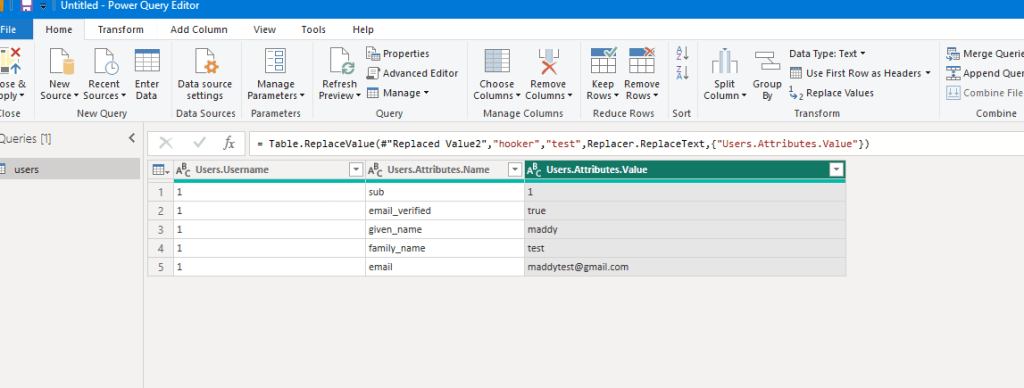
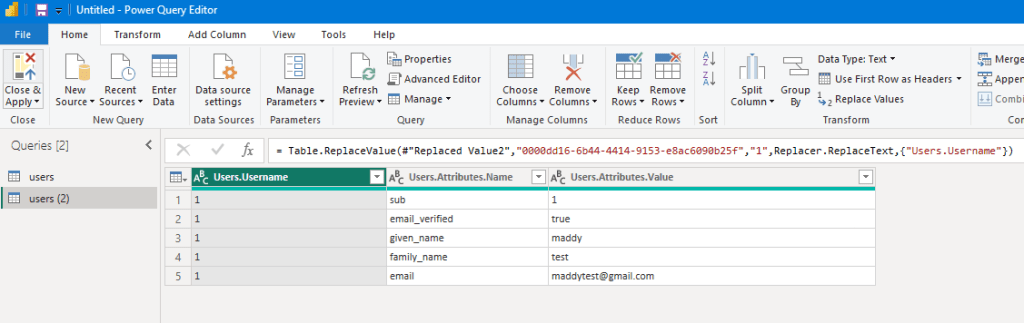
Source data –

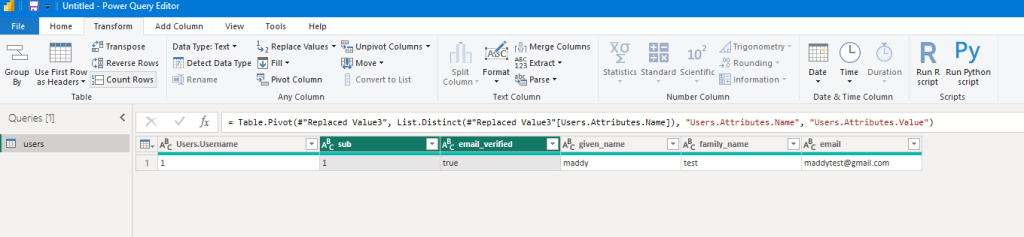
Expected data –


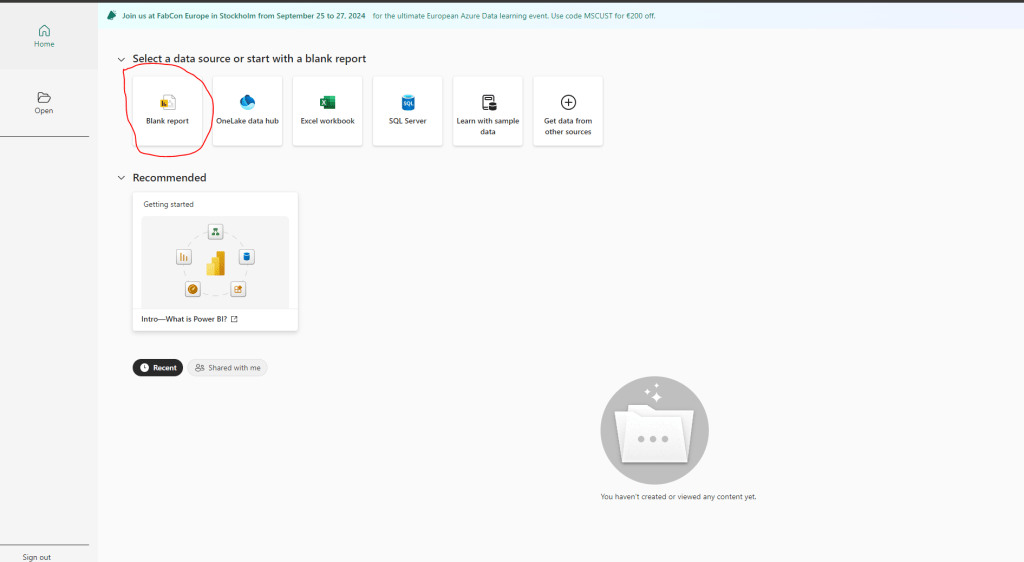
  1. Open Power BI Desktop and click on Blank report

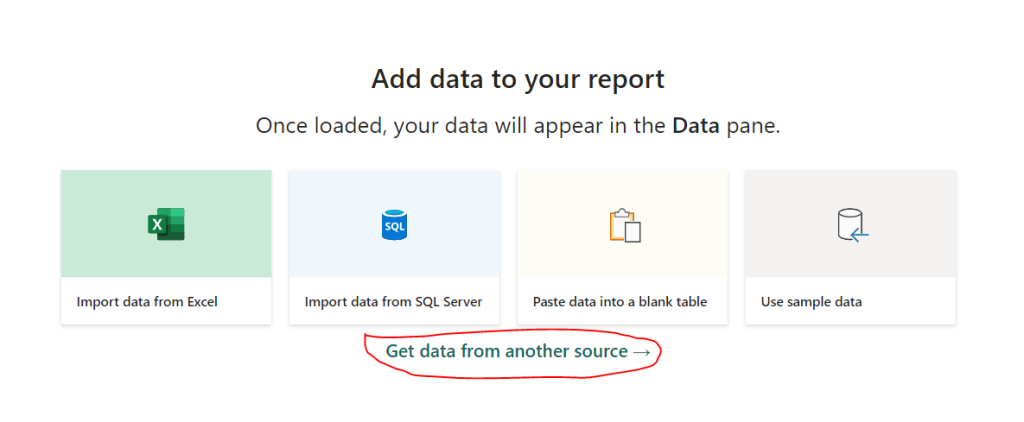
2. Click on Get data from another source

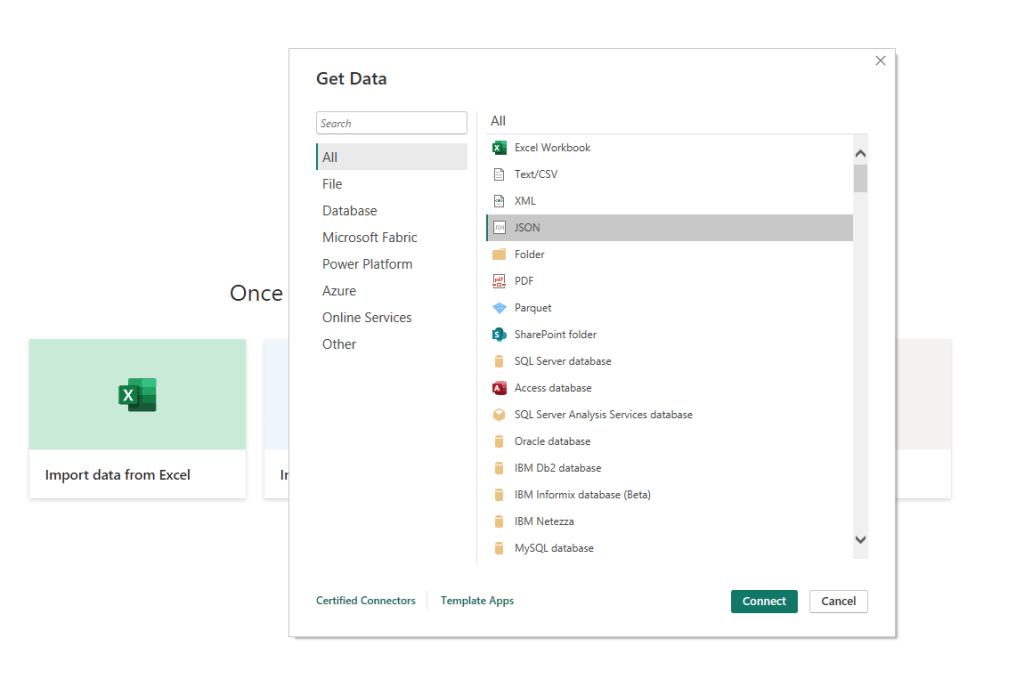
3. Select JSON and click on Connect

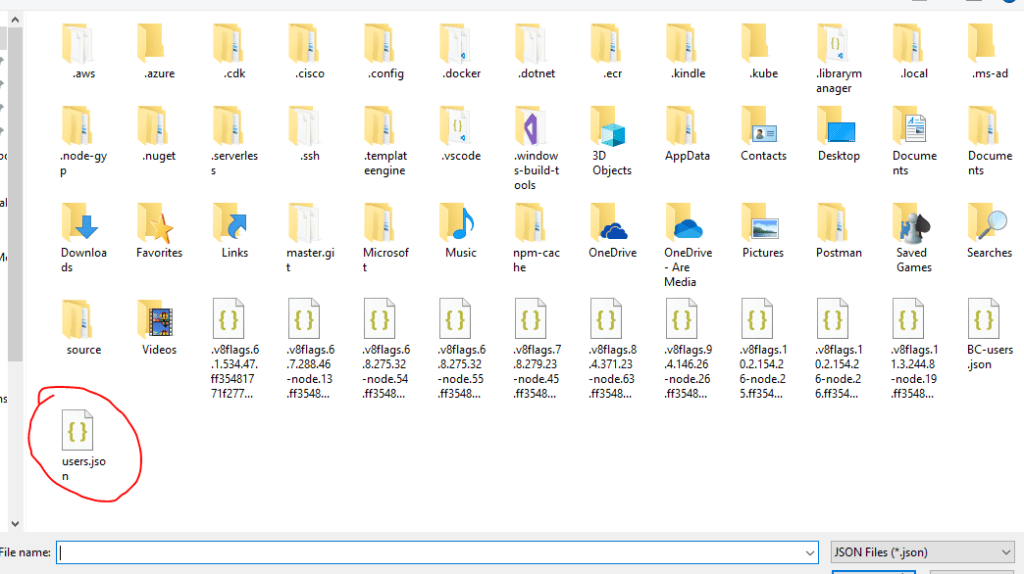
4. Select your JSON file and click Open

5. JSON data will be opened like below

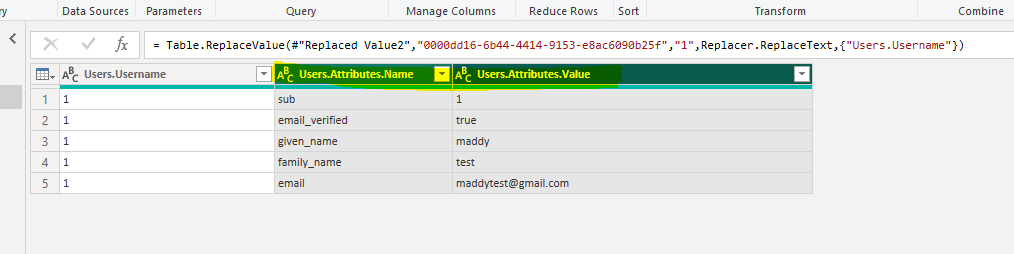
6. Select the columns you want to convert

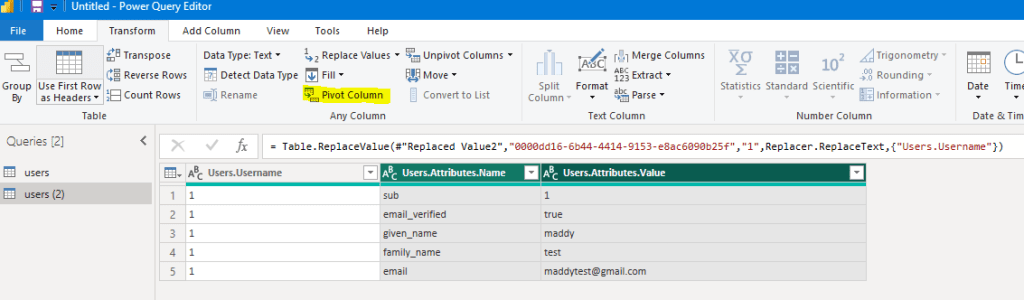
7. Select Transform tab and click on Pivot Column

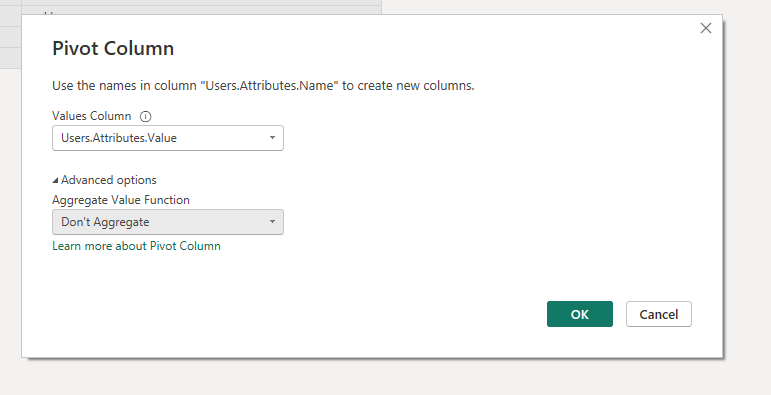
8. Select the Values Column and from Advanced options, select Don’t Aggregate

9. Click OK

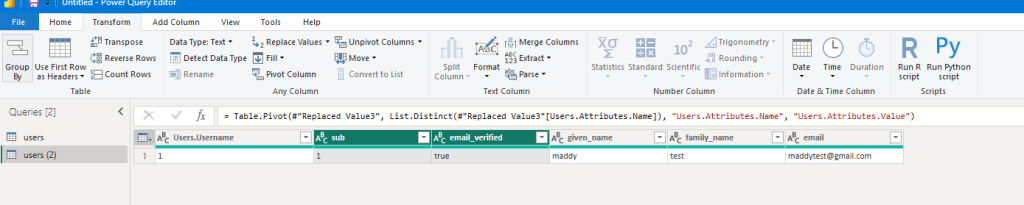
You will see the output