
Install Power BI Desktop if you don’t have it.
Follow below steps to convert rows into columns with json data
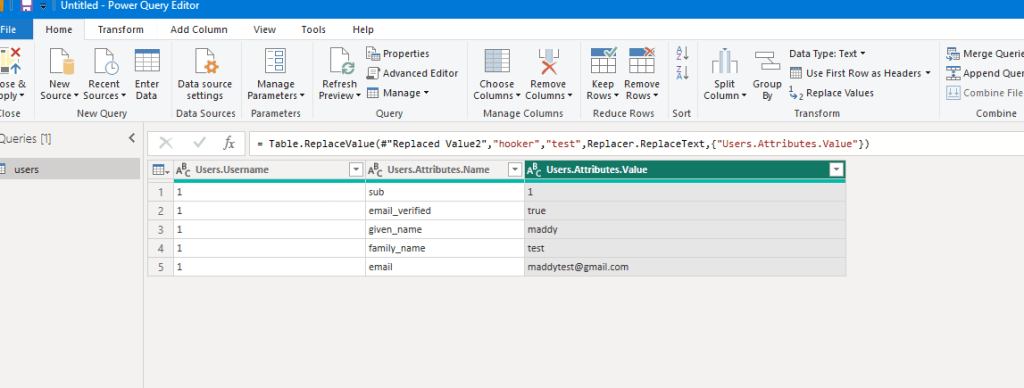
Source data –
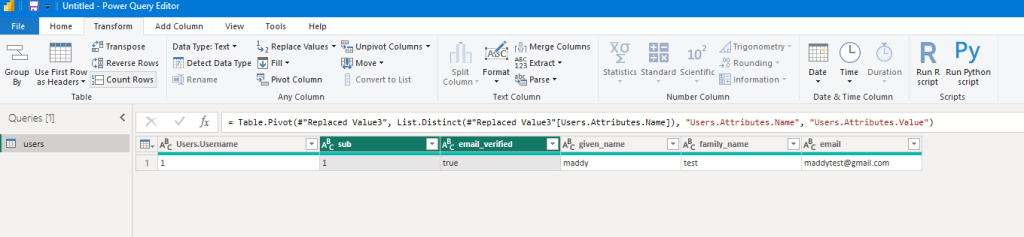
Expected data –
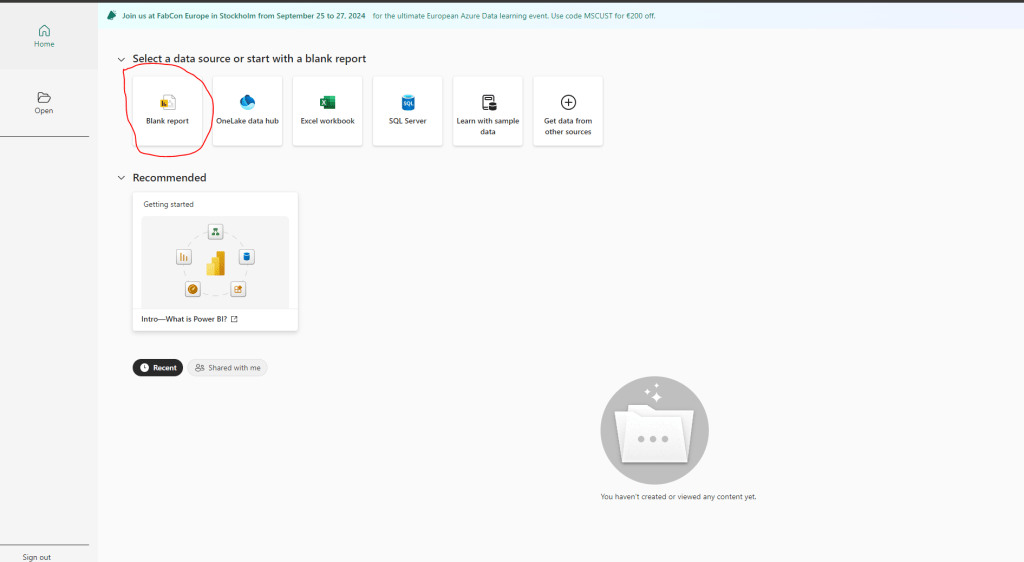
- Open Power BI Desktop and click on Blank report
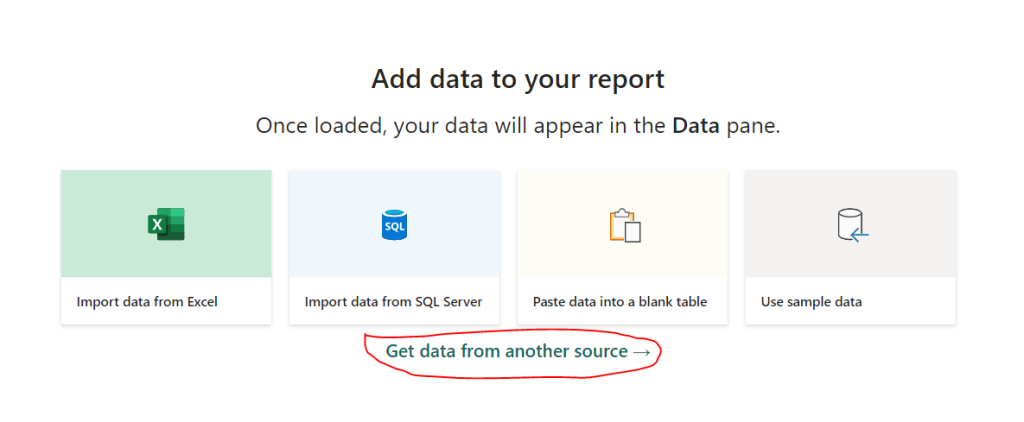
2. Click on Get data from another source
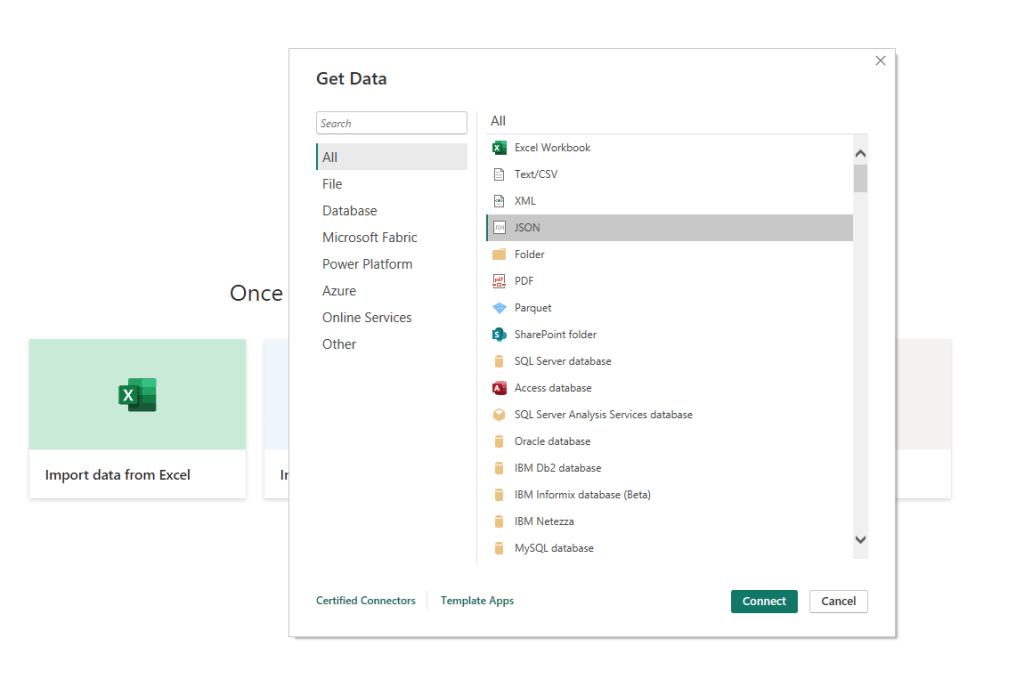
3. Select JSON and click on Connect
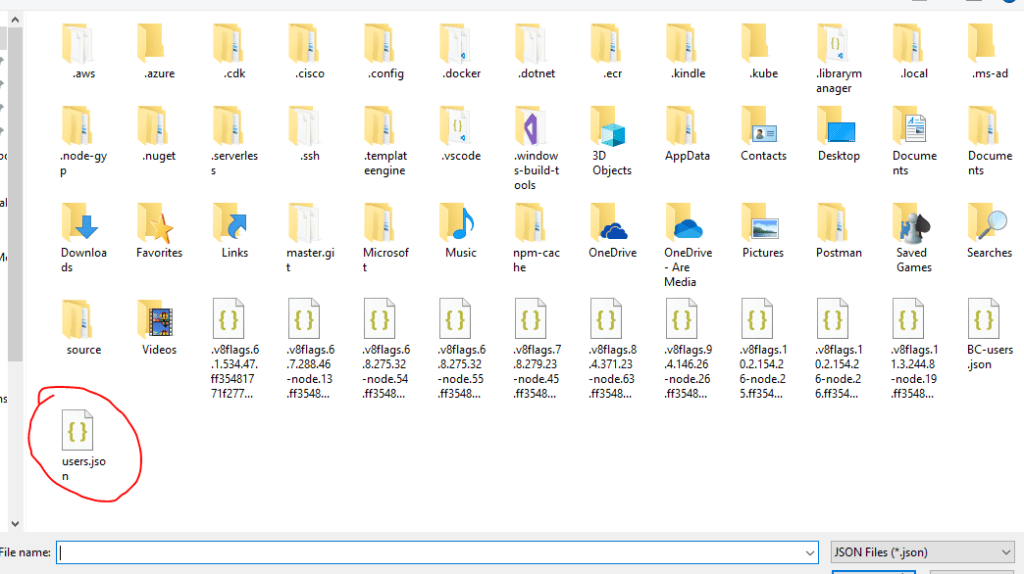
4. Select your JSON file and click Open
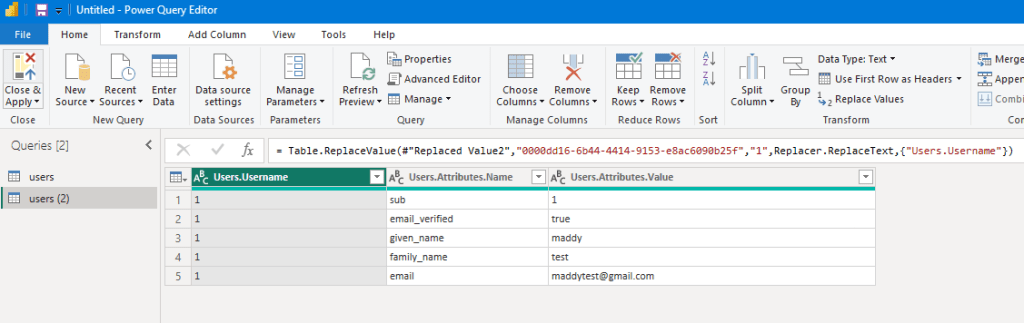
5. JSON data will be opened like below
6. Select the columns you want to convert
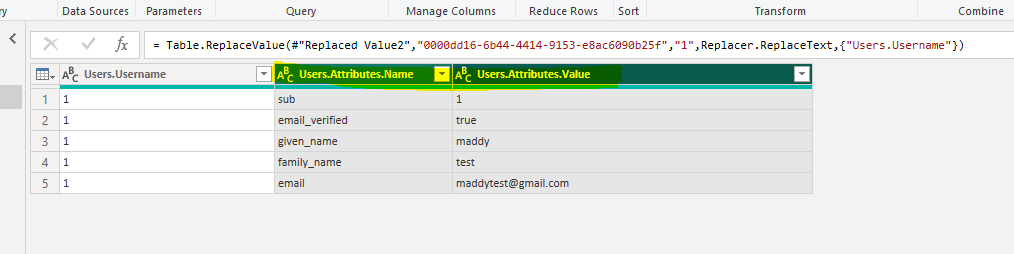
7. Select Transform tab and click on Pivot Column
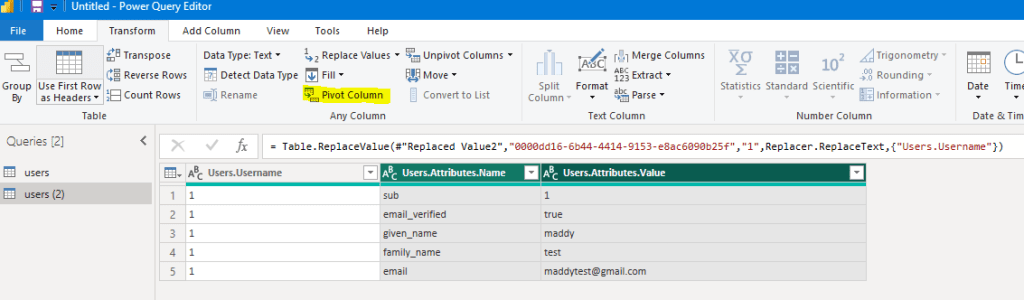
8. Select the Values Column and from Advanced options, select Don’t Aggregate
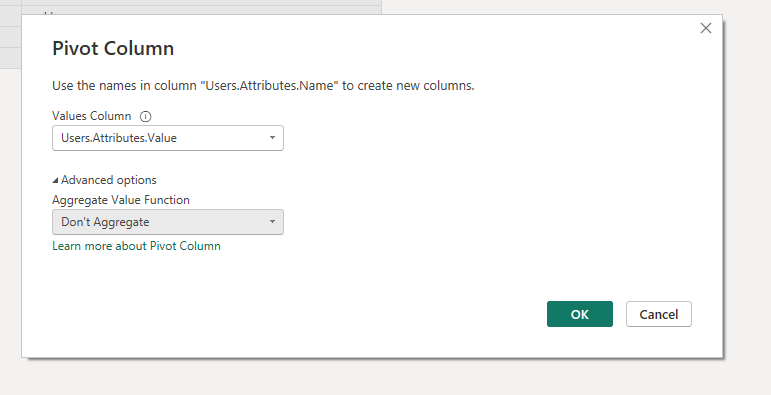
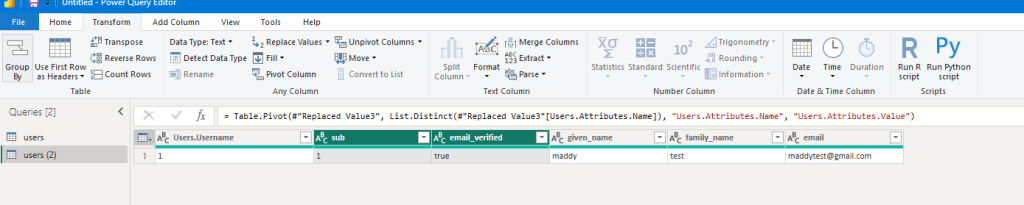
9. Click OK
You will see the output
 TechieSpice