Generate fonts from SVGs using Icomon

ICOMOON , a free vector icon pack is used to generate the fonts for the icons. It is a free vector icon pack.

ICOMOON , a free vector icon pack is used to generate the fonts for the icons. It is a free vector icon pack.

Steps you need to follow to generate the desired font –

1. Open https://icomoon.io/ and click IcoMoon App in the top right corner of the page to generate the fonts.
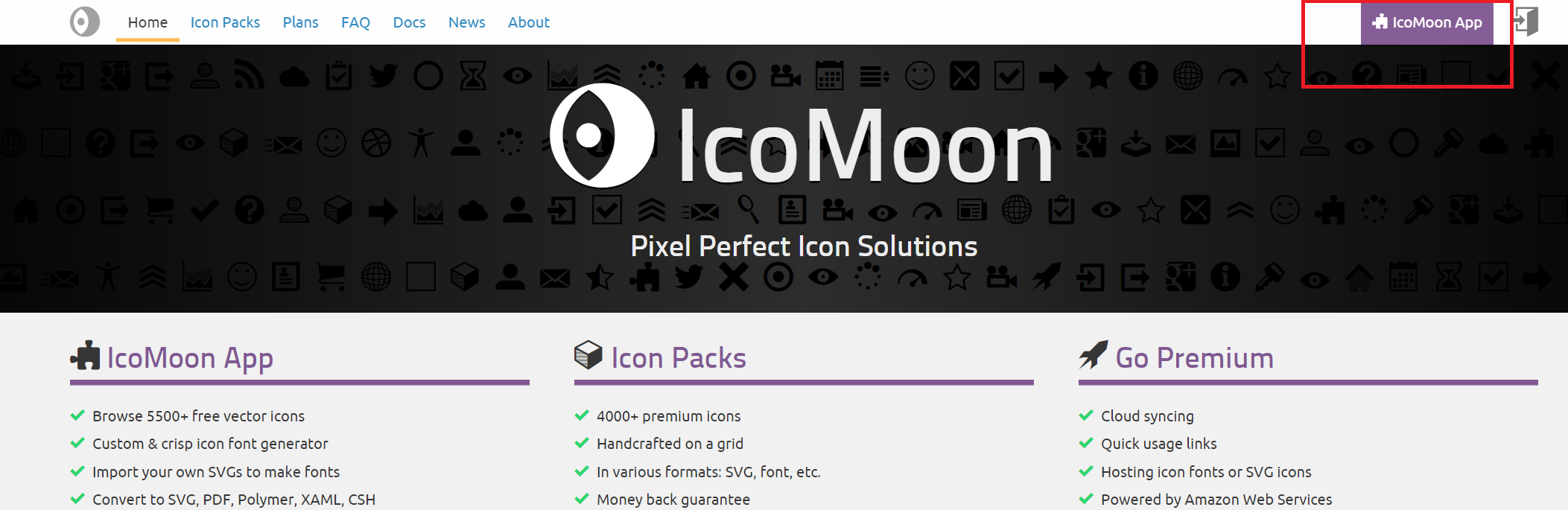
Screenshot (92) (1)

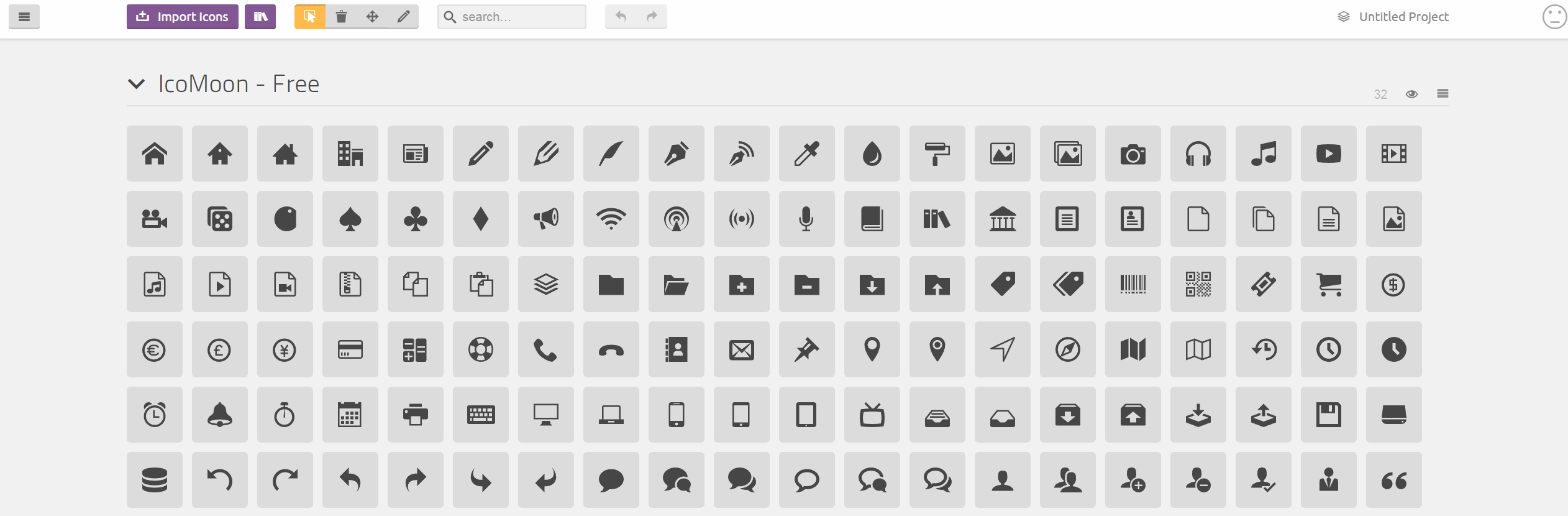
Now, you will see the untitled project with some of the default set of Icomoon icons that you may use as well, if you like.
Screenshot (93) (1)

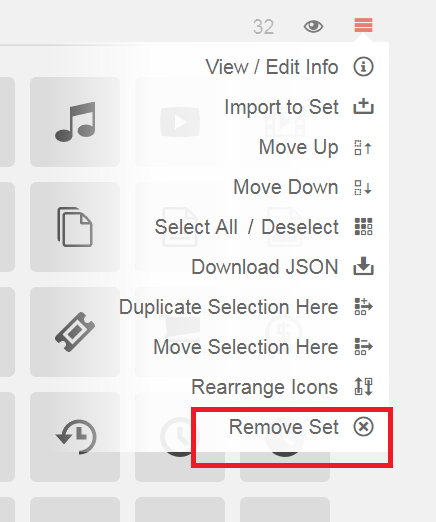
If you do not want to use any of the icons from the default set, then you may remove the set completely by selecting the small icon on the far right and selecting Remove Set. This will keep your project clean and manageable.

Note

It is not necessary to remove the default set of icons, as the fonts will be generated only for the icons you will select.
Screenshot (94) (1)

     2. Importing Icons (SVGs)

If you have a json with all the icons that are already being used in the application, then you should import the same into icomoon app as shown below.

Click on Import Icons and select the json file as below

Screenshot (95) (1)
Untitled

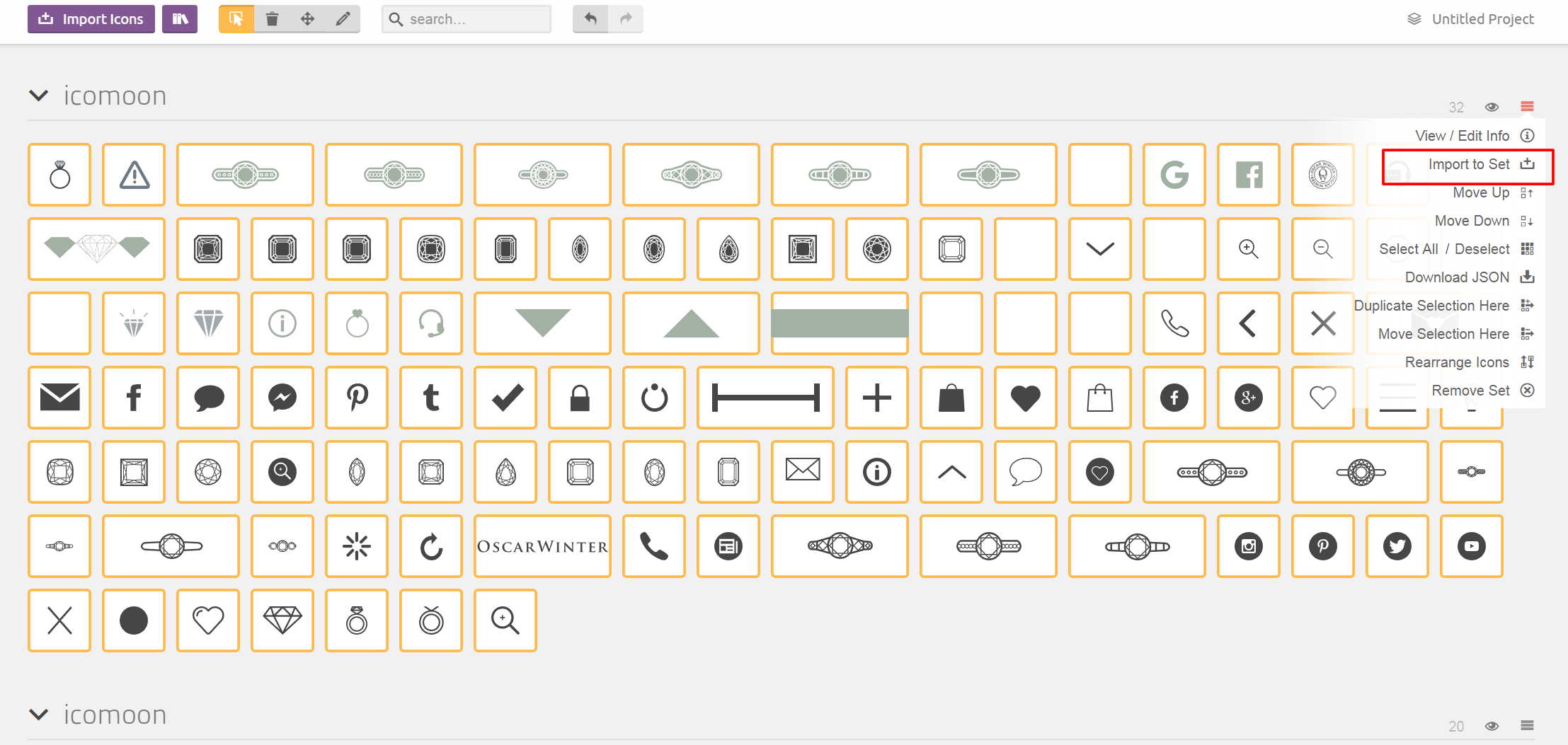
Now you can see all the icons that you are using in the application. To generate font for the new icon, you need to import the SVG for that icon first as below.

Note

You can import the new icon to any of the existing sets.

Select the icon on far right and click Import to Set to select the SVG file.
Screenshot (96) (1)

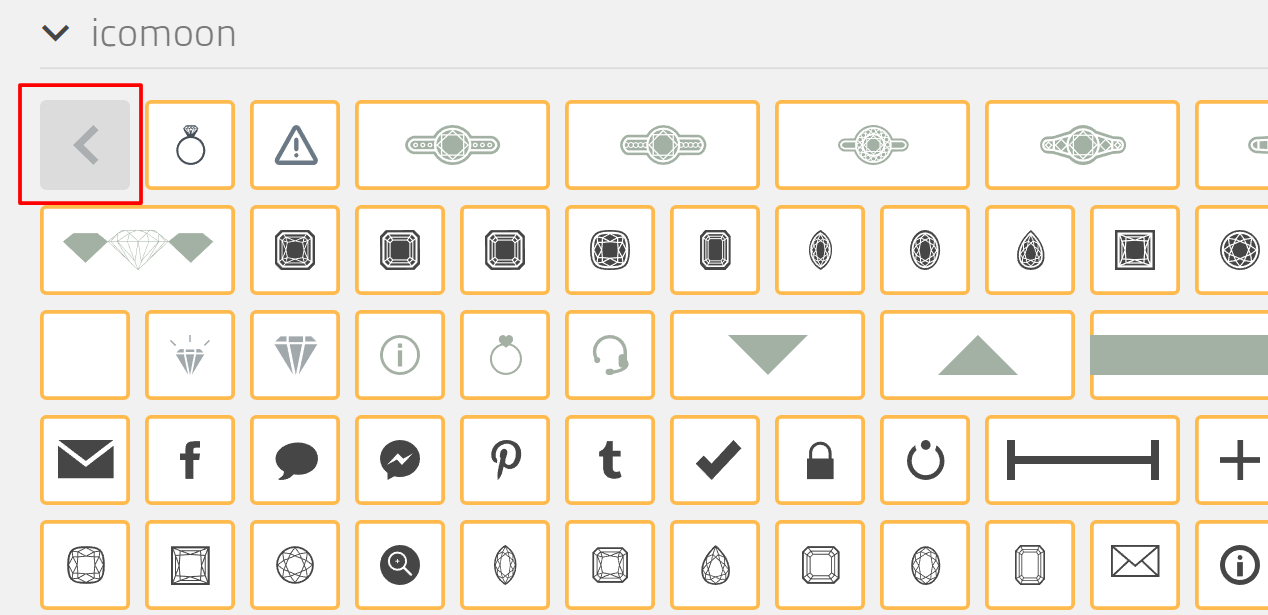
After import, you can see the selected icon (SVG) as below. You can see that all the other icons are selected (with yellow border) and the one that we just imported is not selected yet.

To generate the font for the new icon, you need to select it (or select/deselect all the icons that you want to generate the fonts for)
Screenshot (97) (1)

3. Generating Fonts

To generate the fonts for the selected icons, click on Generate Font button at the bottom.
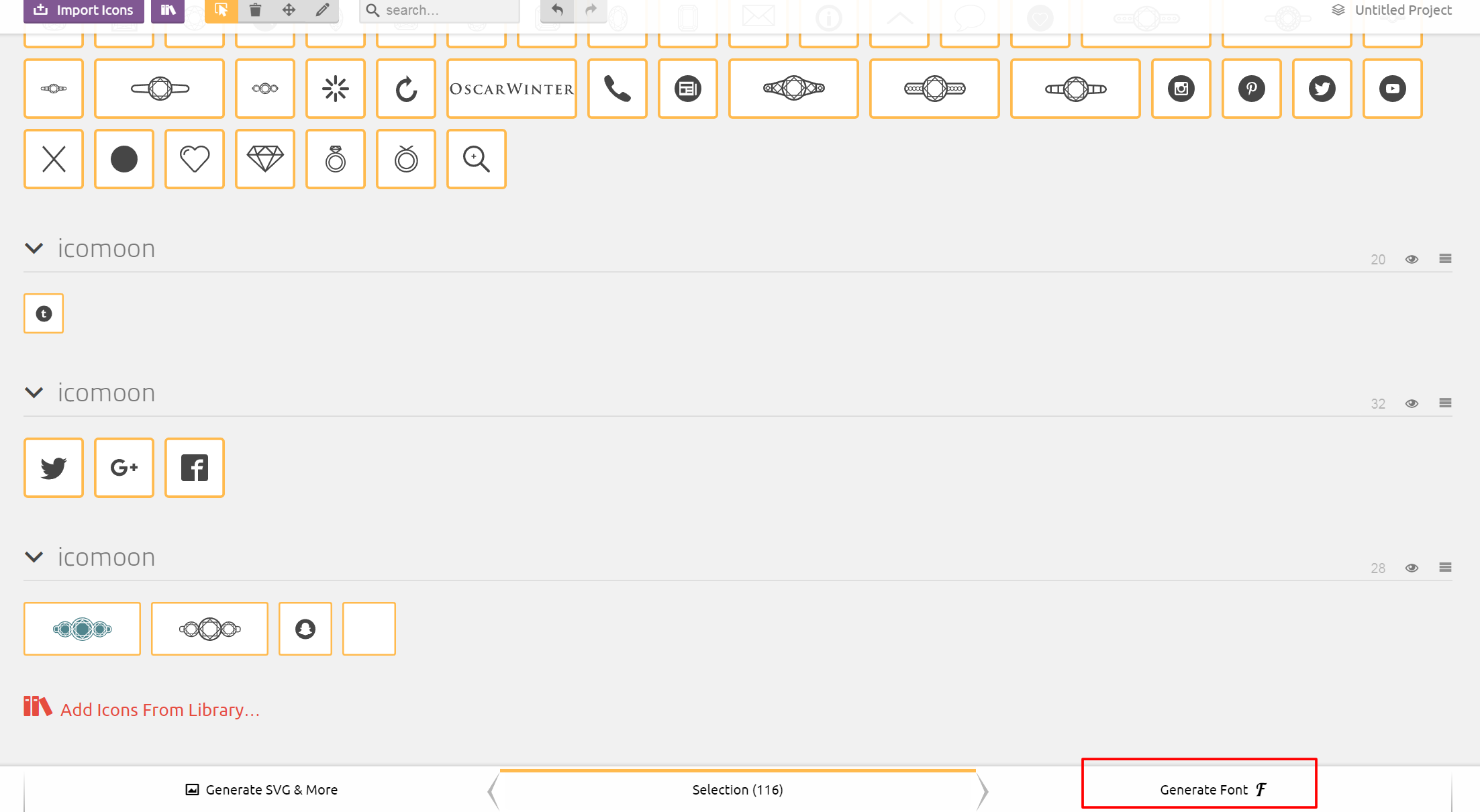
Screenshot (98) (1)

Now you could see all the icons (Glyphs) with the unicode values to be referenced in the HTML.
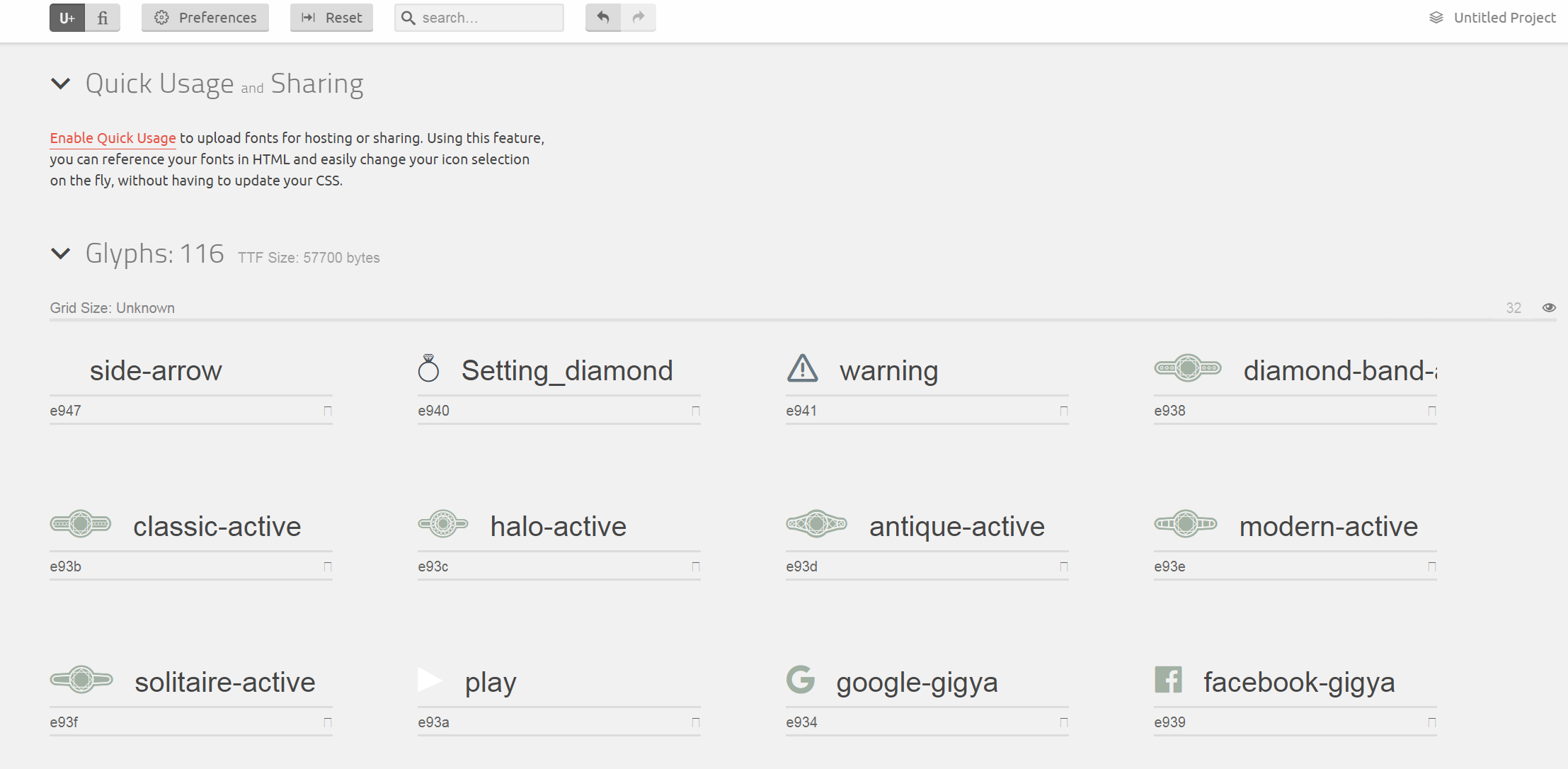
Screenshot (99) (1)

Hover over one of them and click Get Code to get the html to be added in the application.
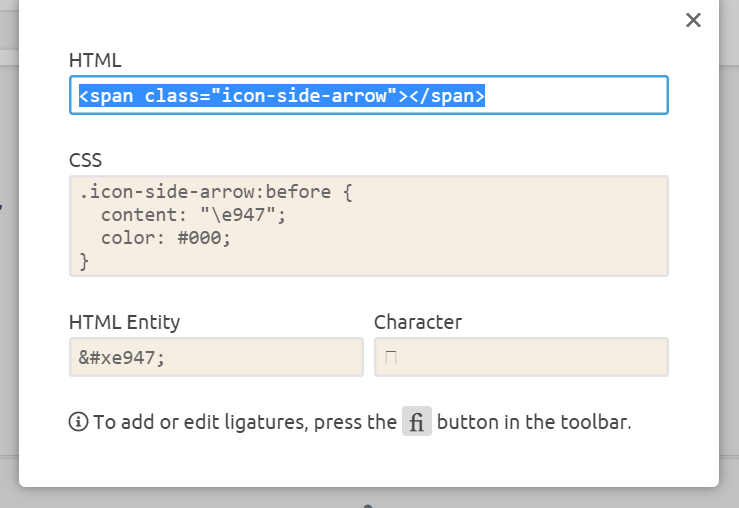
Screenshot (100) (1)

       4. Download Font

The next step is to download the font. For this, you need to click on Download button at the bottom as shown below.
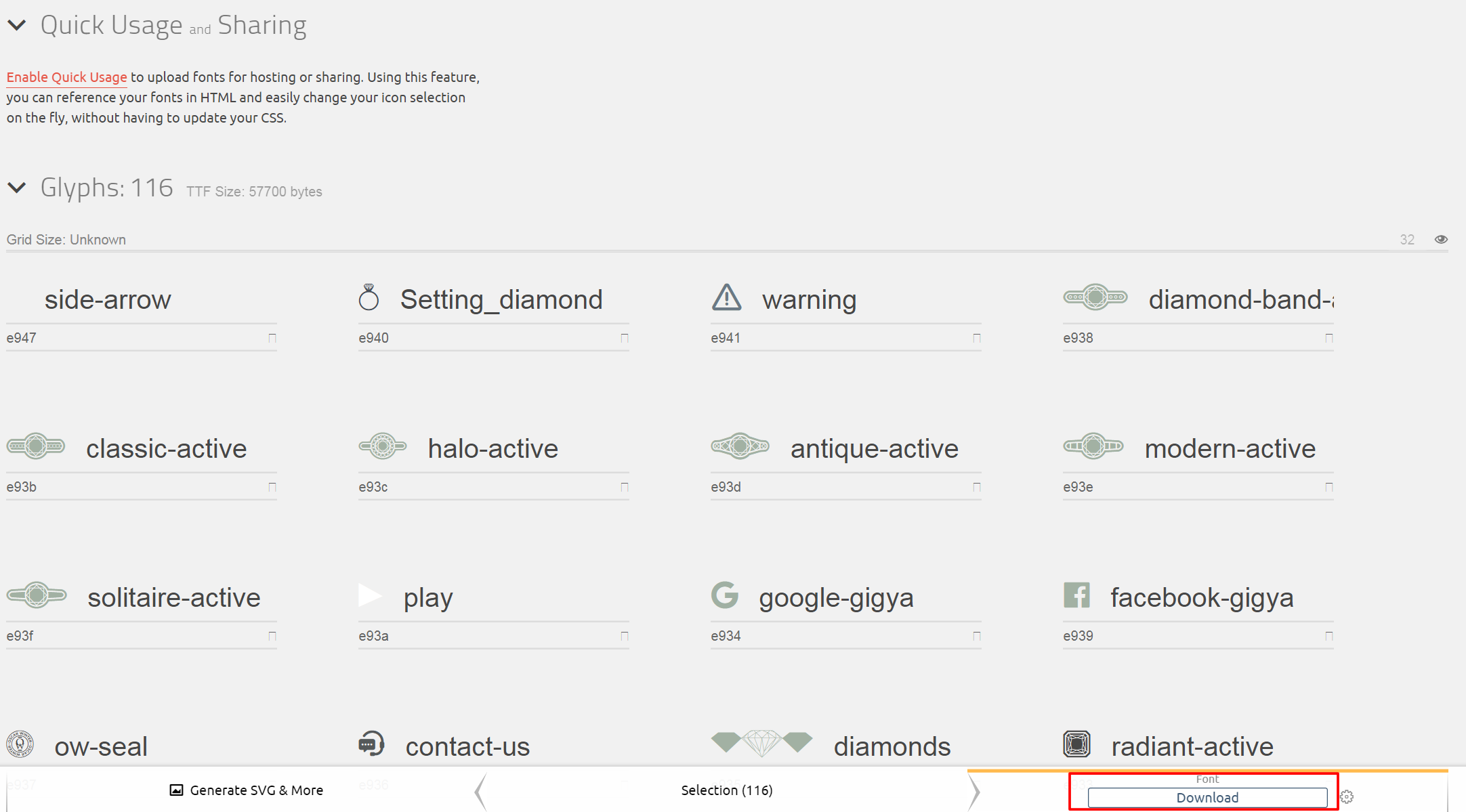
Screenshot22

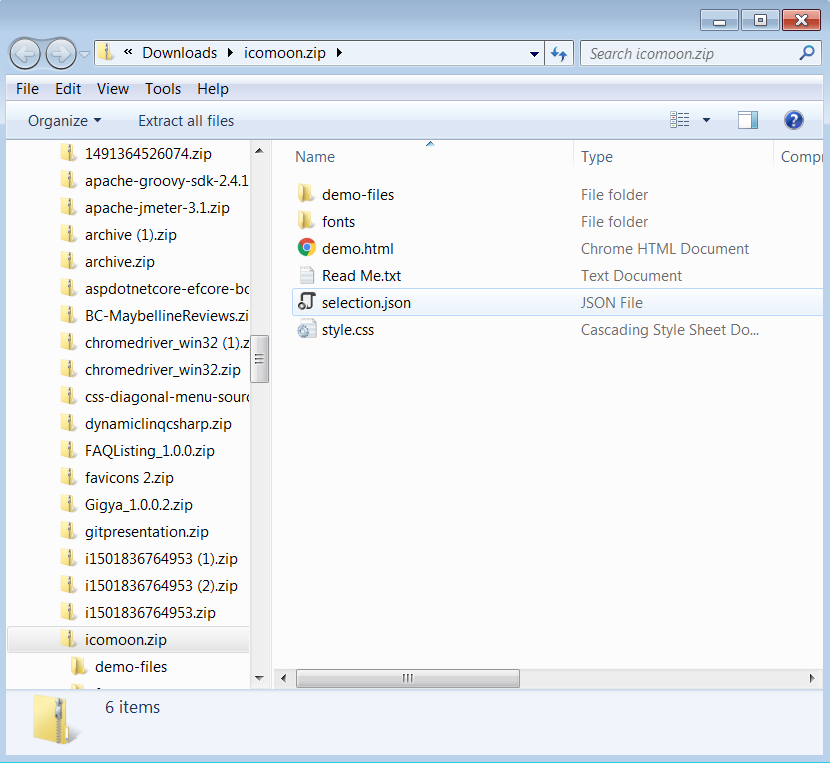
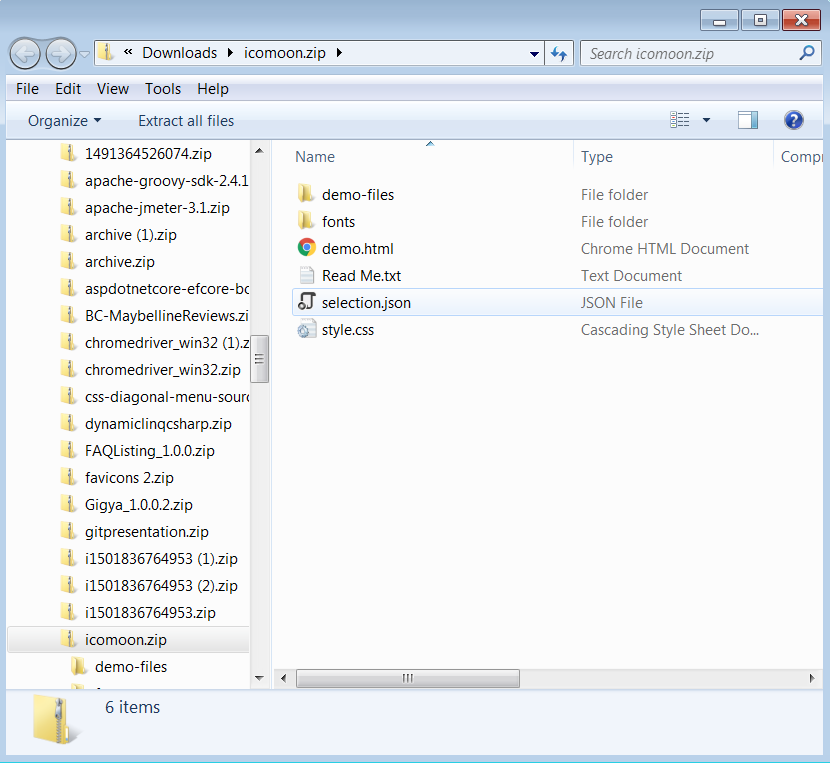
The downloaded .zip file contains the font in various formats, a demo file you can use as a reference, a .json file that can be re-uploaded to restore your project and, a .css file encoding your icons.
Untitled (1)

Now, replace the new files with the existing ones (to include the new font we just generated). You need to replace the below files –

  • selection.json
  • all the files under fonts folder

And that’s it ! You are done ! The new icon is ready to use.
Extending uCommerce – Adding Custom Data

Custom data can be stored in uCommerce using Fluent NHibernate mappings.

Custom data can be stored in uCommerce using Fluent NHibernate mappings.

Following things are required while adding custom data –

  • An entity class
  • A table to store the data in the database
  • A map to let uCommerce know how to store the data
  • A mapping tag to let uCommerce know that a particular DLLs contains maps

For complete tutorial, refer this doc – How to add custom data in uCommerce

After saving the data in the database, the next step is to create the UI, i.e. the grid.

Here is a sample code to create a grid in uCommerce – 


$(function ()
{
$('#sampleTable').dataTable(
{
"bPaginate": false,
"bFilter": false,
"bSort": false
});
});


<div class="propertyPane">
<table class="dataList" id="sampleTable" style="width:100%;vertical-align:top;">
<thead>
<tr>
<th><span>Name</span></th>
.. Add the headers</tr>
</thead>
<tr>
<td></td>
.. Add the data bindings</tr>
</table>
</div>

uCommerce is using Datatables plug-in for jQuery for its UI. Click here for more info

Get all URLs in Umbraco using SQL

Use the below SQL script to get all the Urls in your Umbraco project

Use the below SQL script to get all the Urls in your Umbraco project.

; WITH PathXml AS (

/* -- This gives nodes with their 'urlName' property
 -- not in recycle bin,
 -- level &amp;amp;amp;amp;gt; 1 which excludes the top level documents which are not included in the url */
 SELECT
 nodeId,
 cast([xml] as xml).query('data(//@urlName[1])').value('.', 'varchar(max)') AS Path
 FROM cmsContentXml x
 JOIN umbracoNode n ON x.nodeId = n.id AND n.trashed = 0 AND n.level > 1
)

SELECT
 u.id,
 u.path,
 '/' +
 /* This is to get the top level document */
 IsNull((SELECT
 pl.Path + '/'
 FROM PathXml pl
 WHERE ',' + u.path + ',' LIKE '%,' + CAST(pl.nodeId AS VARCHAR(MAX)) + ',%'
 ORDER BY CHARINDEX(',' + CAST(pl.nodeId AS VARCHAR(MAX)) + ',',
 ',' + u.path + ',')

FOR XML PATH('')),
 '') AS Url,
 u.text PageName
FROM umbracoNode u
WHERE nodeObjectType = 'C66BA18E-EAF3-4CFF-8A22-41B16D66A972' /* Document node */
AND trashed = 0
ORDER BY 3 /* Url */


Click to join and earn money by just spending 10-15 minutes a day

https://turnkeyemailbiz.net/cliqlytrialv1?c=491875

Find files of given size using PowerShell

Get-ChildItem

Get-ChildItem [path] -recurse | where-object {$_.length -gt [size]} | Sort-Object length

Get-ChildItem

The cmdlet can be used to get the items and the child items in a  particular location, folder or a directory.

Get-ChildItem [[-Path] <String[]>]

In order to get the files in a folder or subfolder, you can use this cmdlet.

To traverse the sub folders, you can use -Recurse parameter and to limit the number of levels that needs to be recursed, you can use -Depth parameter.

To get the list of files greater than, less than or equal to, you can use Where-Object. It allows to select an object from a collection based on some condition.

Get-ChildItem [path] -recurse | where-object {$_.length -gt [size]} | Sort-Object length

Example

Get-ChildItem ‘C:\Users\ImgToUpload1 – Copy’ -recurse | where-object {$_.length -gt 2000000} | Sort-Object length

This will list all the files in ‘C:\Users\ImgToUpload1 – Copy’ folder that are greater than 2MB in size and also sort them based on the size or length in ascending order (default order). In order to sort the list in descending order, you can use -Descending.

Example

Get-ChildItem ‘C:\Users\ImgToUpload1 – Copy’ -recurse | where-object {$_.length -gt 2MB} | Sort-Object length -Descending

You can use

  • -lt for less than
  • -eq for equal to
  • -ne for not equal to
  • -ge for greater than or equal to
  • -le for less than or equal to

Note: ‘=’ sign is not used to check equality in PowerShell as it is used as an assignment operator

PowerShell – Working with URLs

Invoke-WebRequest

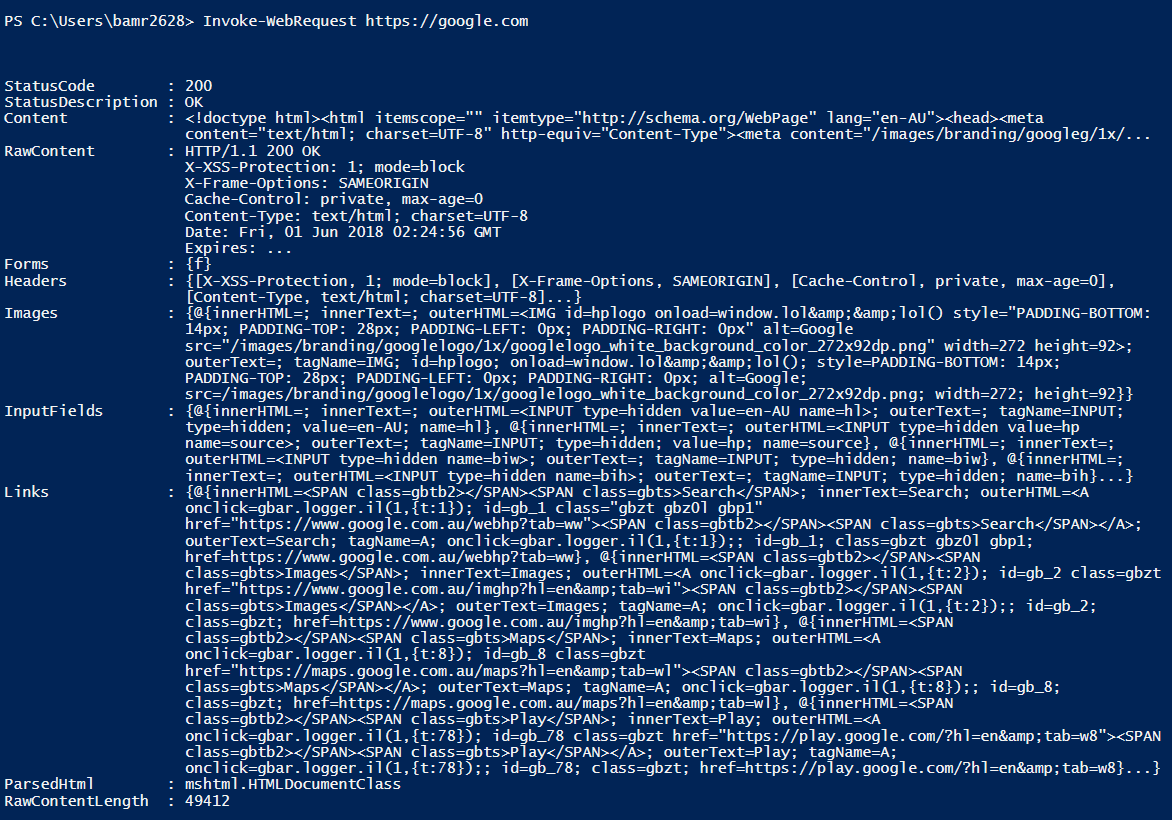
This command is used to get the content from a web page by sending the HTTP or HTTPS requests to that page. In other words, you can simple parse or scrape a web page for images, links, etc.

In response, you will see a parsed result including status code, links, images, input fields, etc.

Invoke-WebRequest <Uri>

Example:

Invoke-WebRequest https://google.com

Output

SSL/TLS

By default, PowerShell uses TLS 1.0 for HTTP / HTTPS requests.

You can easily check the TLS version of any website.

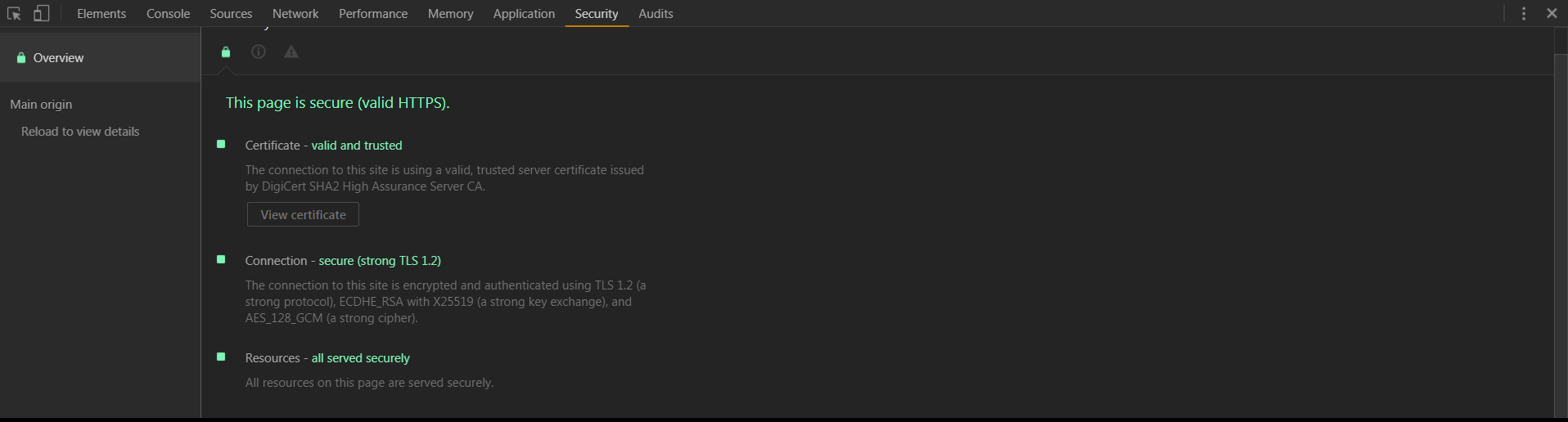
Google Chrome – Click F12 > Go to Security Tab

tls

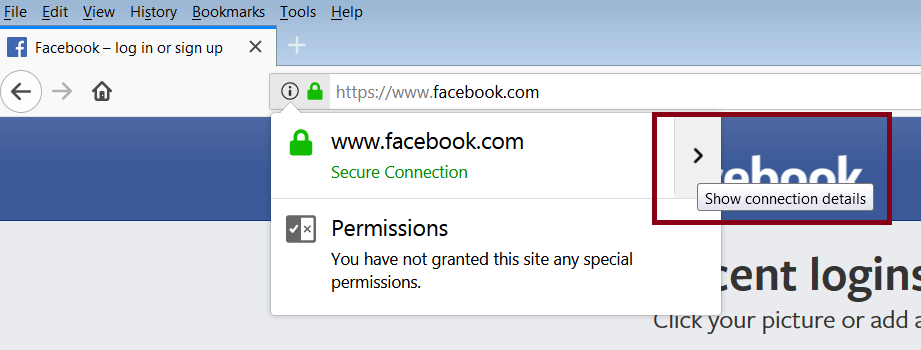
Mozilla Firefox – Click on the padlock icon on the left of address bar and then click on the right arrow as shown below.

fb

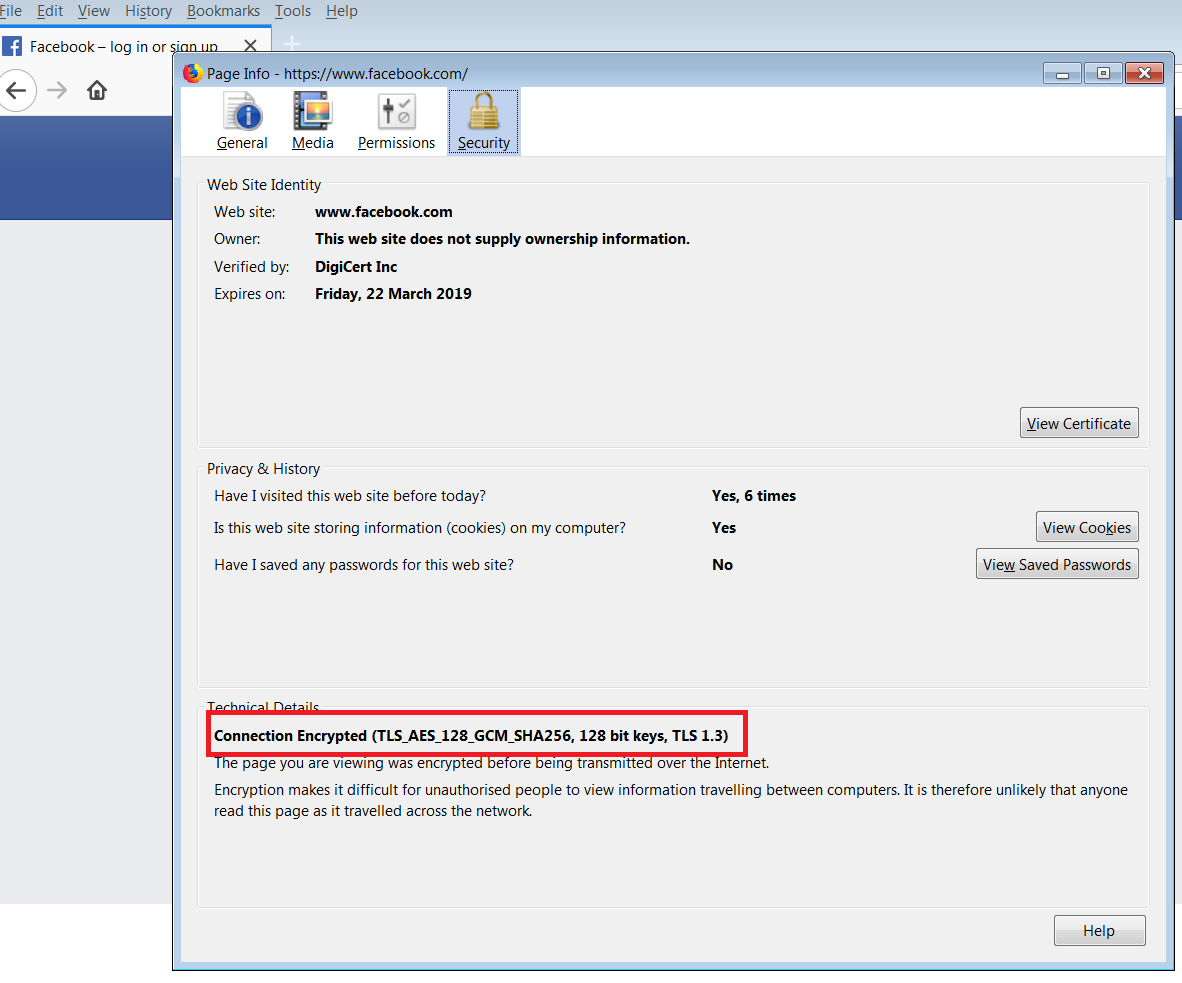
Click on more information and you will see a popup with TLS version.

tlsver

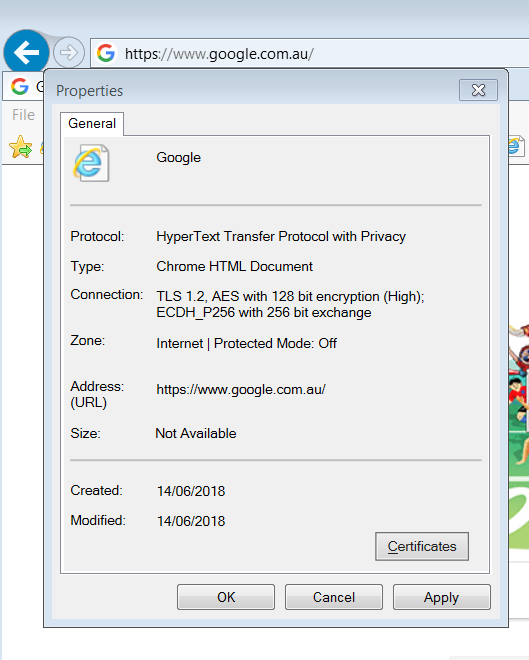
Internet Explorer – Open a website > Right click on page > Click on Properties

ie

Not all the websites use TLS 1.0 and it is not possible to establish a secure connection to a website using different TLS version.

error

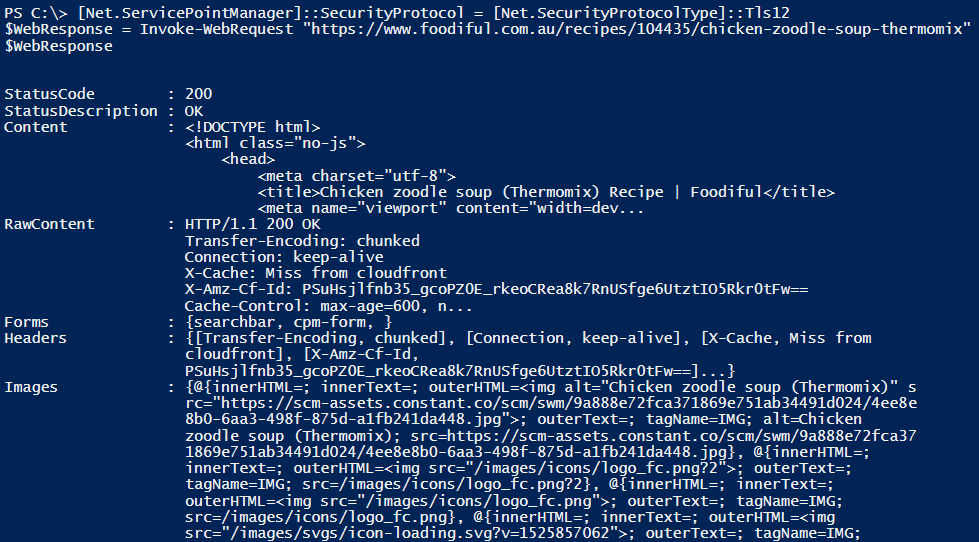
So in order to make HTTP or HTTPS calls using Invoke-WebRequest, you have to force PowerShell to use a different version (eg. TLS 1.2)

# Forcing PowerShell to use TLS 1.2

[Net.ServicePointManager]::SecurityProtocol = [Net.SecurityProtocolType]::Tls12

Example:

1

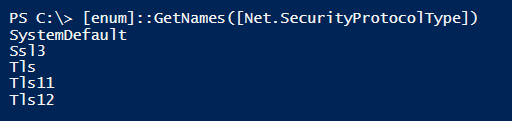
If you are wondering, which versions you can use with PowerShell, then simply use the following cmdlet

[enum]::GetNames([Net.SecurityProtocolType])

ver