How to search from an XML column in SQL

Search from an xml column in sql

<ArticlePage>
  <publishDate><![CDATA[201612151611499007]]></publishDate>
  <category><![CDATA[1000004]]></category>
</ArticlePage>
SELECT *
  FROM [Table_Name]
  where CAST([xml] as XML).value ('(/ArticlePage/category)[1]', 'varchar(max)') like '1000004'

How to connect to SQL database from Lambda using Nodejs

To connect to SQL database from lambda, I am using Nuget package ‘mssql’.

For this, I have created a serverless application using Nodejs 16.x.

To connect to SQL database from lambda, I am using Nuget package ‘mssql’.

In your serverless application, install mssql like below –

npm install mssql

Usage

I am using Typescript and DBConfig used above is just an interface.
Also replace all the config with your database credentials.

import sql from "mssql";

const config : DBConfig = {
 user: ${process.env.DB_USER},
 password: ${process.env.DB_PASSWORD},
 server: ${process.env.DB_SERVER},
 database: ${process.env.DATABASE},
 options: {
  trustServerCertificate: true,
 },
};

export const run = async () => {
 try {
  await sql.connect(config);
  const result = await sql.query`Select * from [TableName]`;
  var result = result.recordset;
}
catch (err) {
 console.error("Error:", err);
 return {
  statusCode: 500,
  body: JSON.stringify({
  message: "Error accessing the database.",
  error: err,
  }),
 };
}
}

Please note that the RDS and lambda should be in same VPC settings. If while running lambda, you get a timeout error, do verify the VPC settings for both RDS and lambda. If they are in different VPC, then you have to do further settings. Please refer to AWS documentation for that.

Also make sure the IAM role in lambda should have permission to access RDS

Refer to this if you are looking to send an email with attachment from lambda.

Restore SQL database from .bak file stored in AWS S3 bucket

A Sql Database can be restored using .bak file

A Sql Database can be restored using .bak file

The below query can be used to restore database using a .bak file stored in AWS S3 bucket

exec msdb.dbo.rds_restore_database

-- replace name with the database name

@restore_db_name='<name>', 

--Replace backup s3 path with the actual path. 
--Eg. prod-backups/DLProdDB-12-07-19
--In this, prod-backups is the bucket name and DLProdDB-12-07-19 is the .bak --file name

@s3_arn_to_restore_from='arn:aws:s3:::{backup s3 path}'


To check the status of the restore, use the following query –

exec msdb.dbo.rds_task_status @db_name='<name>'

For more info, click here

Interested in Cryptocurrency. Register and start investing here

Earn a side income by affiliate marketing. Learn here how to do it.

Restore Azure Database (.bacpac) file to SQL Server (.bak) file

Azure Sql Database is a fully managed relational database that provisions quickly, scales on the fly and includes built-in intelligence and security as well.

Azure Sql Database is a fully managed relational database that provisions quickly, scales on the fly and includes built-in intelligence and security as well.

Below are the steps to restore the database from .bacpac (Azure DB backup) file to .bak (SQL DB backup) file

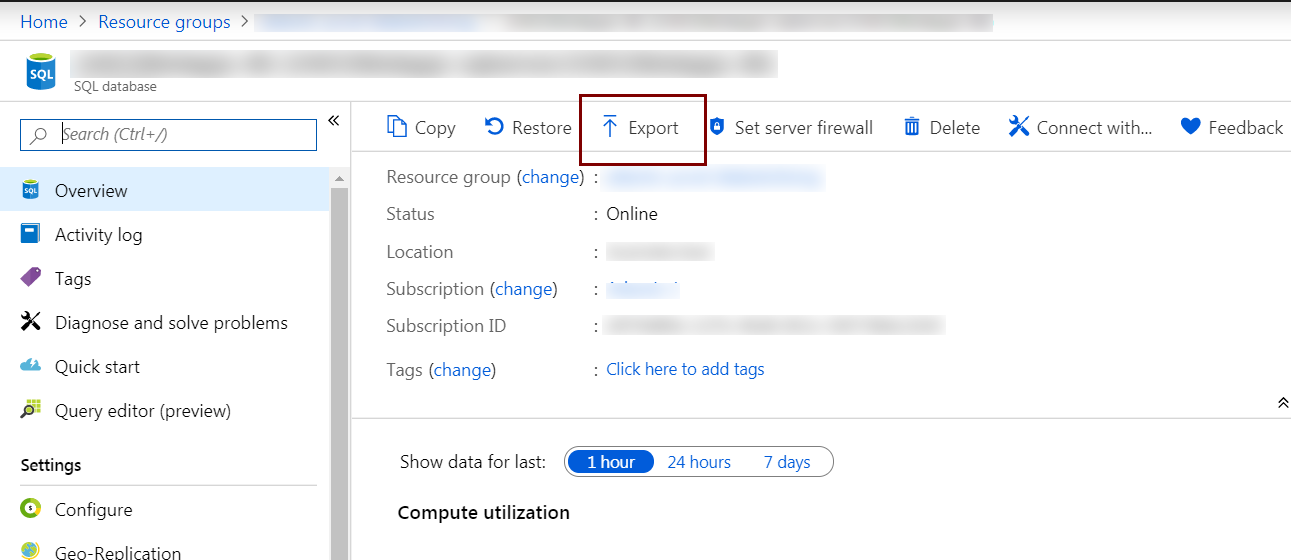
  1. The first step is to export the Azure DB. For this, you need to login to your Azure portal and go to SQL database in your resource group. Click Export as shown below.


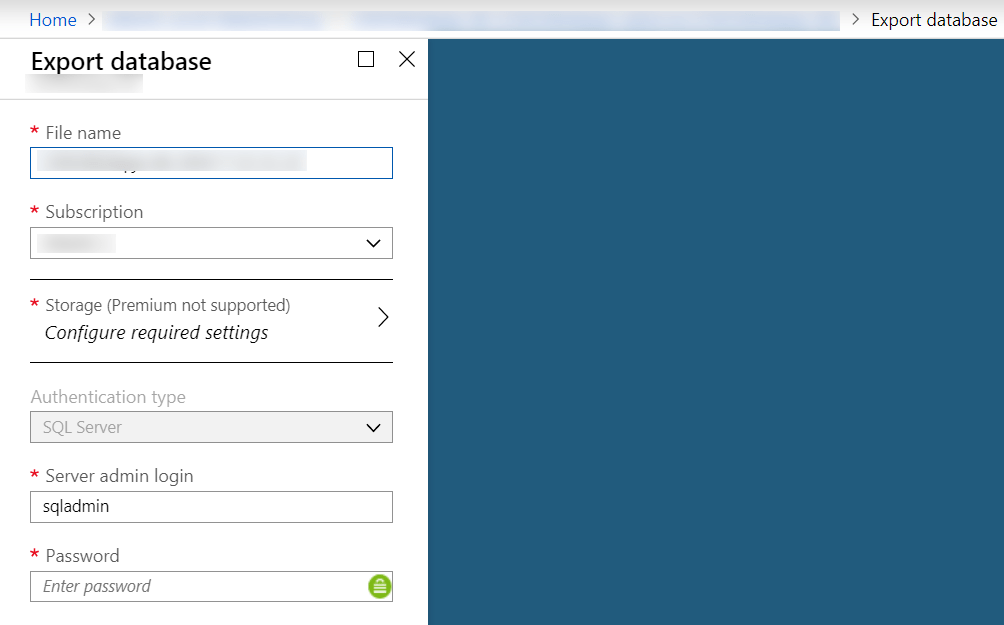
  2. After clicking on Export, you have to select the storage location and add the credentials as shown below.
    This process will take few minutes to finish depending on your database size.


    Note: It is good to select the storage location (blob storage) in the same resource group, if you have multiple resource groups


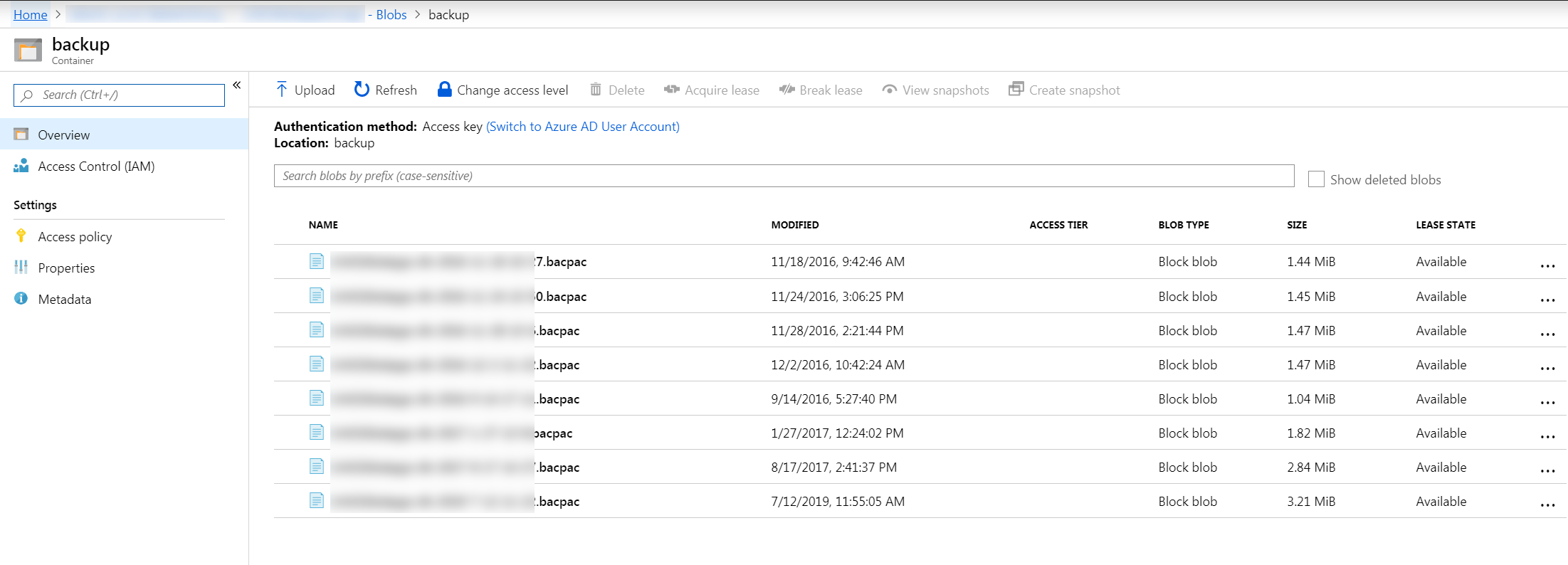
  3. After the export is finished, you will get the exported file as a .bacpac file in your selected storage. (In my case, it is blob storage container)


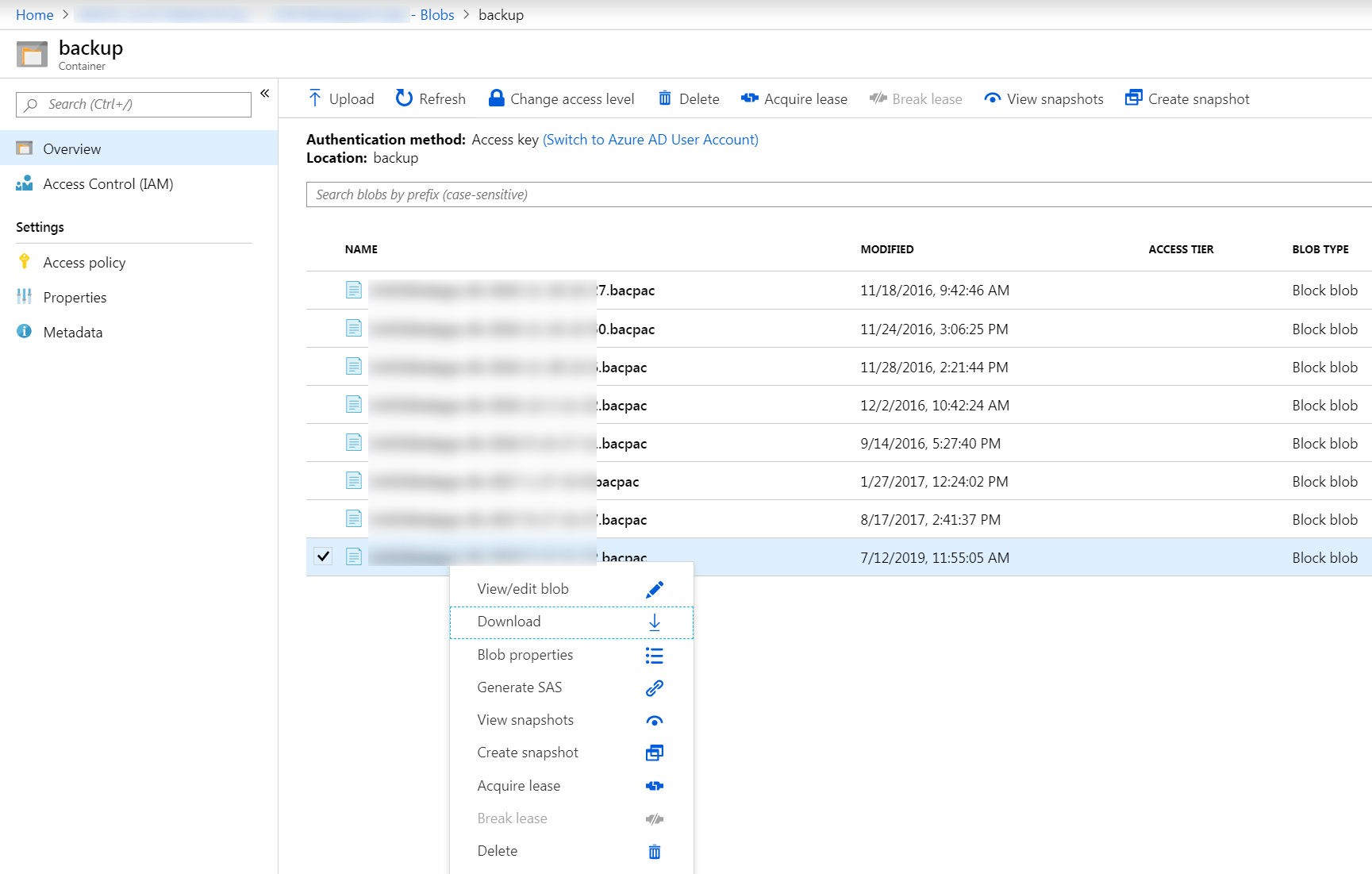
  4. Right-click on the .bacpac file you just created and download it locally


  5. The next step is to create .bak file from the .bacpac file you just downloaded. For this, you need to open SQL Server Management Studio (I am using SQL Server Management Studio v17.9.1).
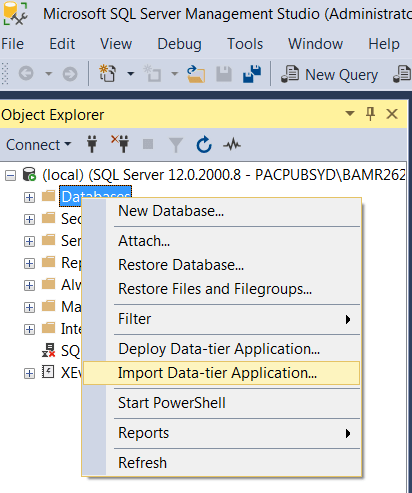
    Right-click on Databases and select Import Data-tier Application.


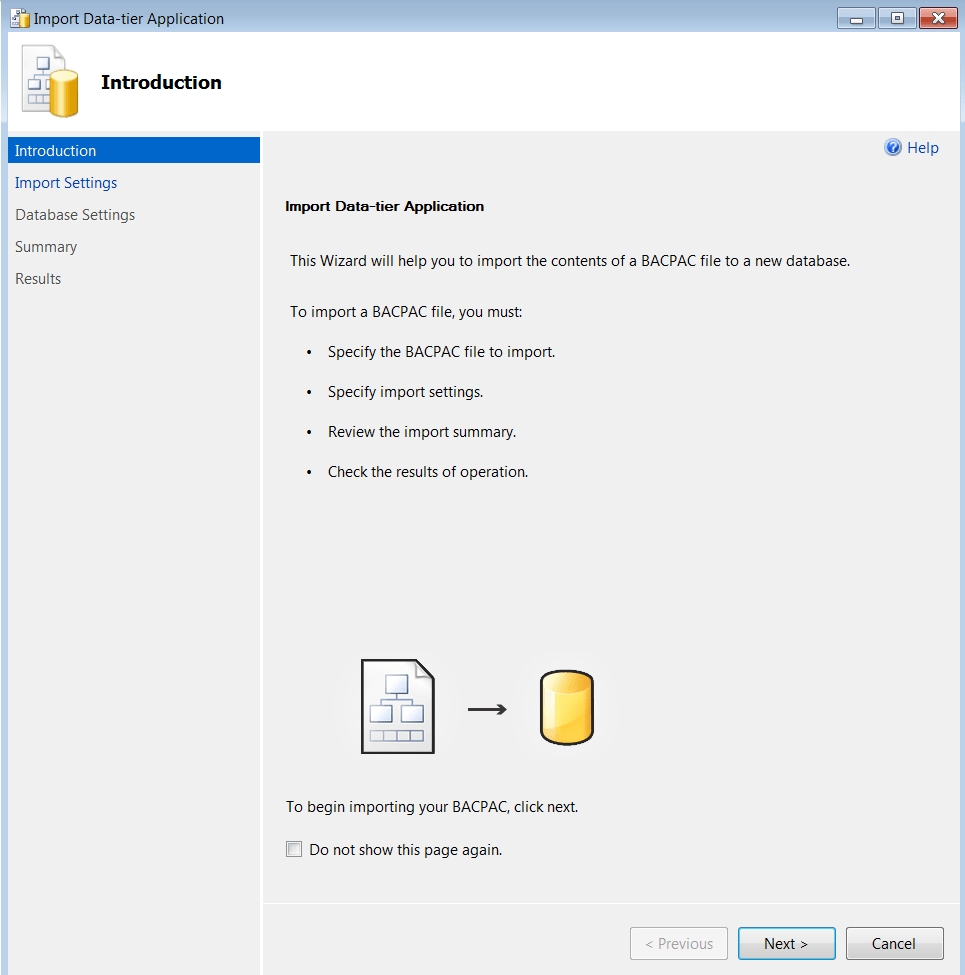
    You will see the below screen. Now, click Next.


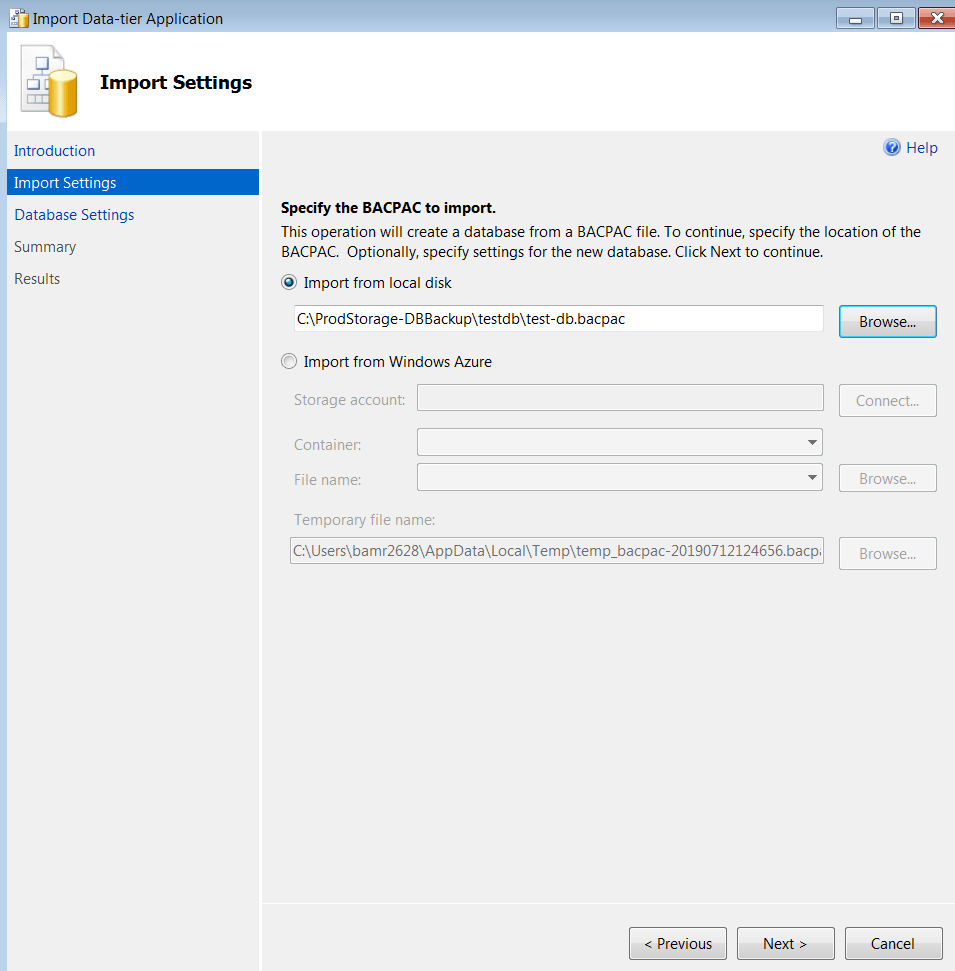
  6. Click on Browse and select the .bacpac file you downloaded from Azure in the previous step and click Next as shown below –


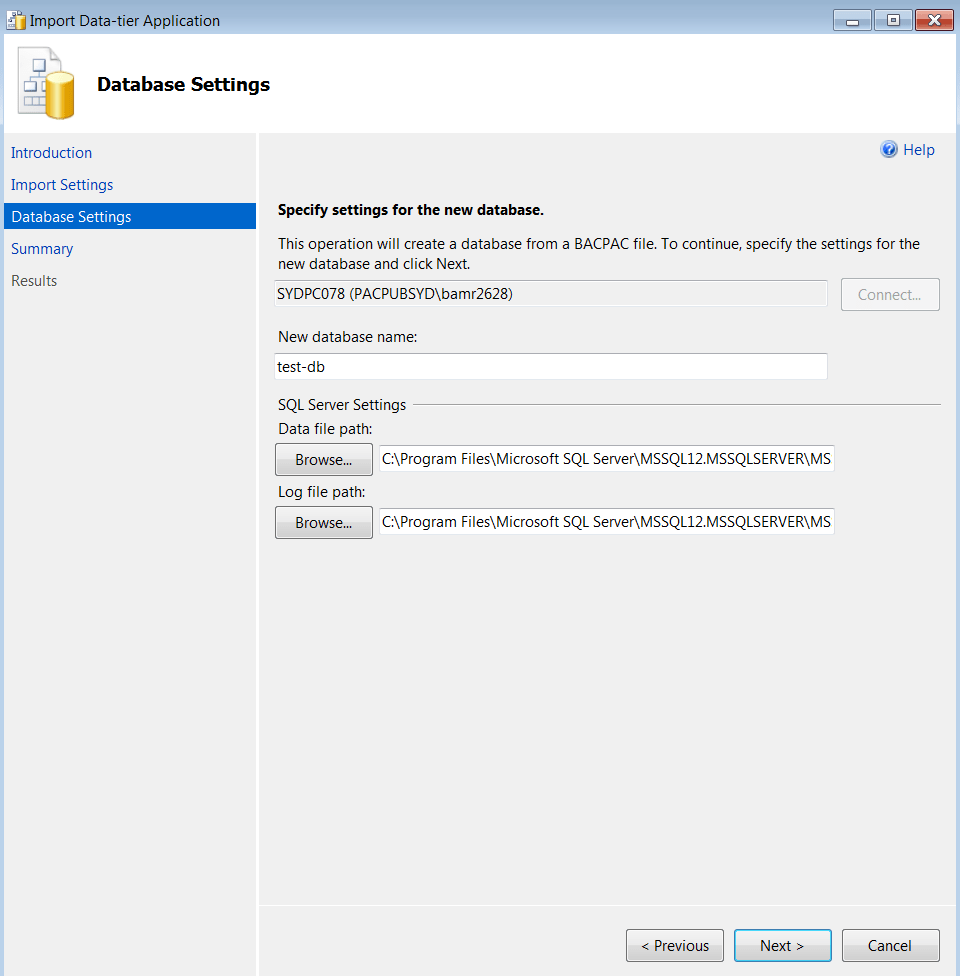
  7. Here you can change the database name or can keep the same name as your .bacpac file.
    You can leave the other settings as it is and just click Next again.


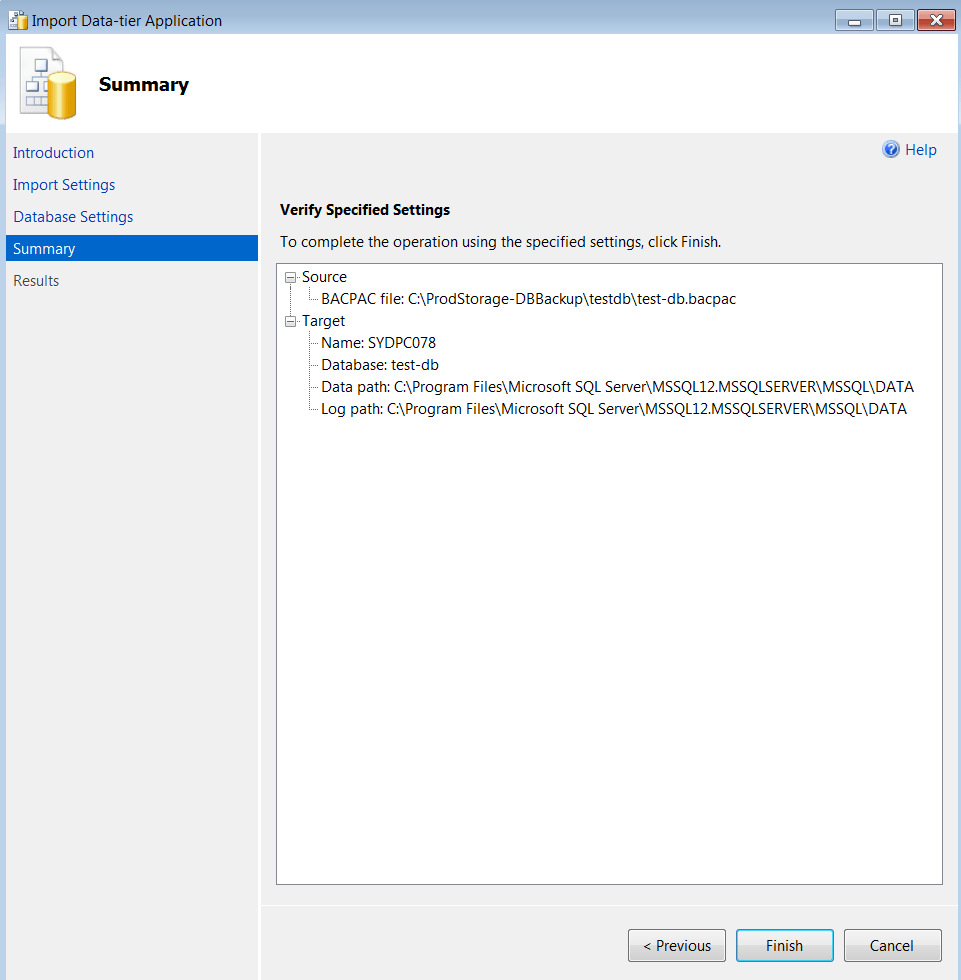
  8. Now, you can verify all the settings below and click Finish or you can click Previous and go back to the previous settings if you want to change anything.


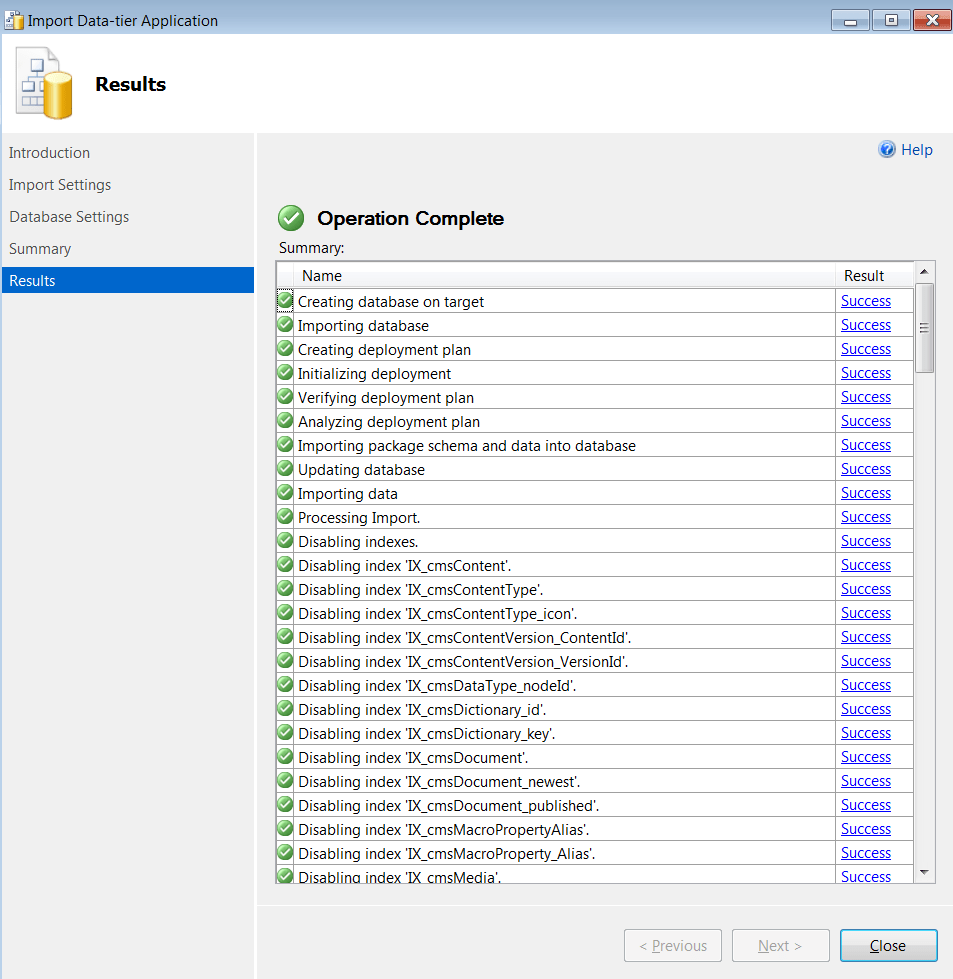
  9. Now you will see the progress and once it is finished, you will see the below Operation Complete screen. If there is any error, you can click on that and see what is wrong, else you will get all Success


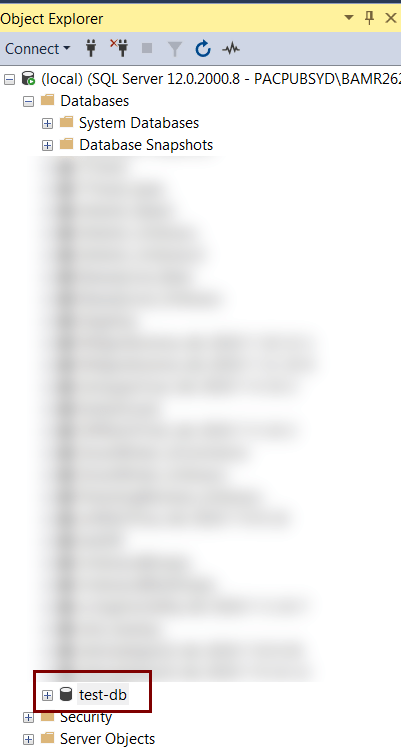
  10. You can see the newly restored database under the Databases folder.


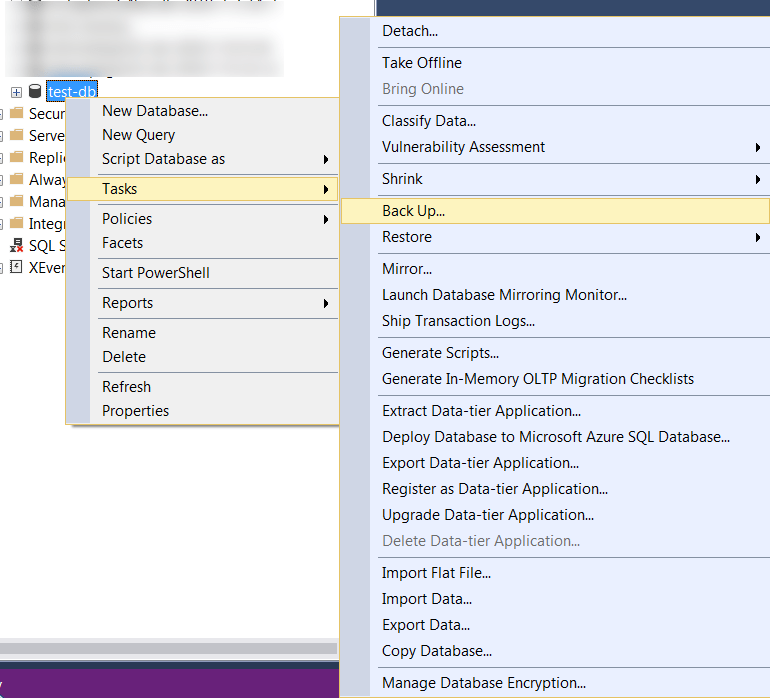
  11. The next step is to create the .bak file.
    For this, right-click on the new DB and select Tasks -> Back Up… as shown below –


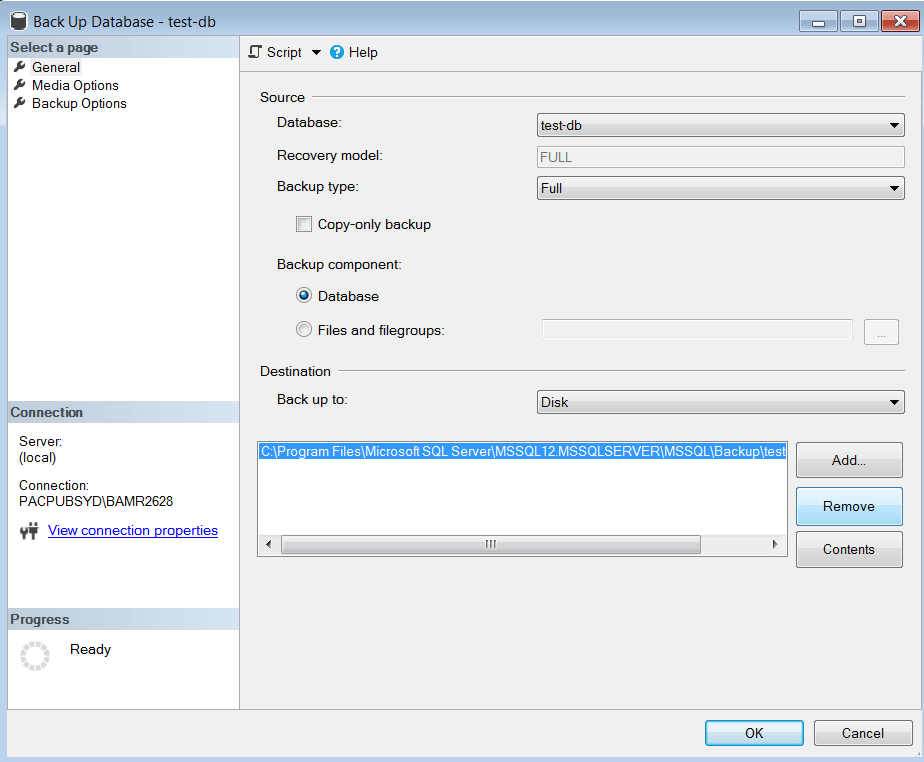
  12. Now, you will see the below screen.
    Remove the destination path that is pre-selected by clicking Remove as shown below.
    And then click on Add to select the path where you want to store your .bak file.


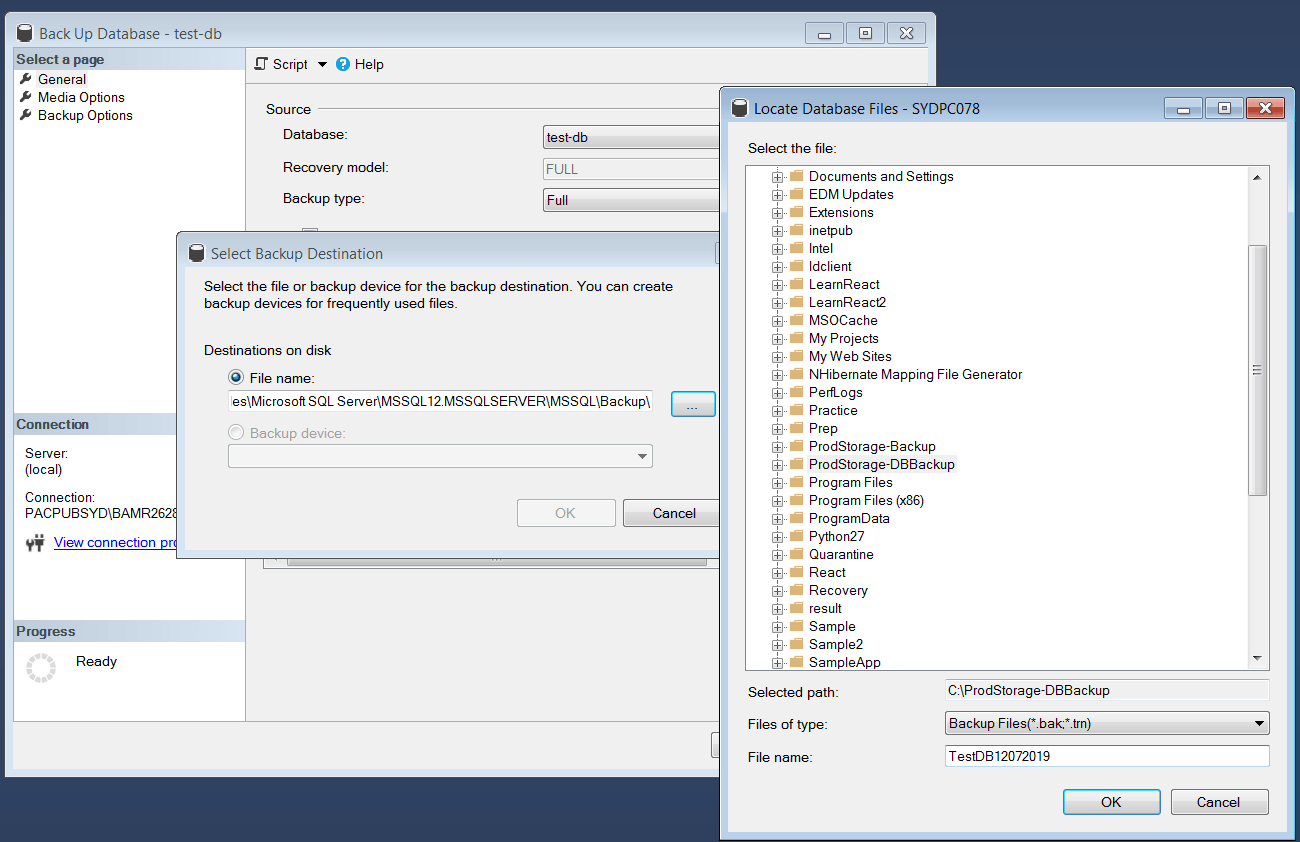
  13. After clicking on Add, you will see the screen below.
    Select the destination path/folder and add the desired File name. I have added TestDB12072019.


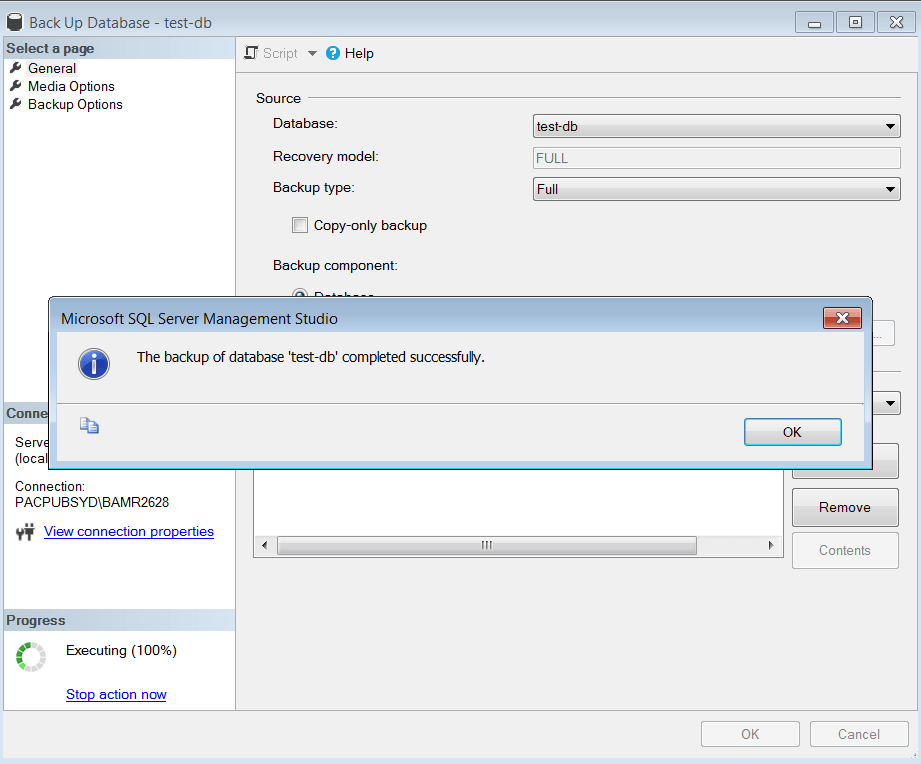
  14. Click OK and you will see it executing. Once 100% completed, you will see the following screen –


    Thats’s it! You have created SQL Server .bak file from Azure database .bacpac file.

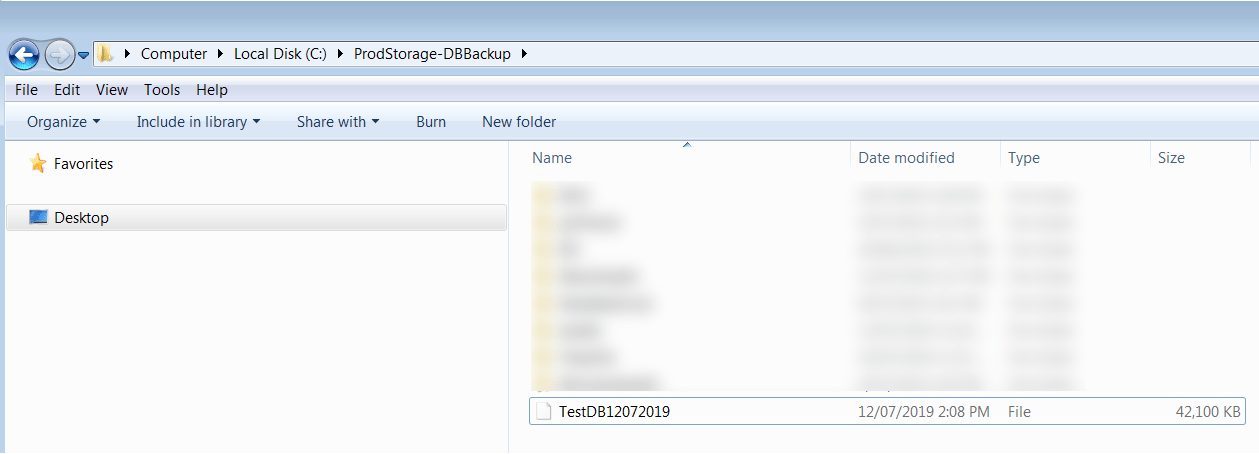
    Now you can see the .bak file in the folder path you selected.


    Please leave a comment, if you have any questions.

Interested in Cryptocurrency. Register and start investing here

Earn a side income by affiliate marketing. Learn here how to do it.

Date Formats in SQL Server

SELECT CONVERT(VARCHAR,GETDATE(),103)

1) SELECT CONVERT(VARCHAR,GETDATE(),100)

Result
May 13 2012 11:30AM

2) SELECT CONVERT(VARCHAR,GETDATE(),101)

Result
05/13/2012

3) SELECT CONVERT(VARCHAR,GETDATE(),102)

Result
2012.05.13

4) SELECT CONVERT(VARCHAR,GETDATE(),103)

Result
13/05/2012

5) SELECT CONVERT(VARCHAR,GETDATE(),104)

Result
13.05.2012

6) SELECT CONVERT(VARCHAR,GETDATE(),105)

Result
13-05-2012

7) SELECT CONVERT(VARCHAR,GETDATE(),106)

Result
13 May 2012

8) SELECT CONVERT(VARCHAR,GETDATE(),107)

Result
May 13, 2012

9) SELECT CONVERT(VARCHAR,GETDATE(),108)

Result
11:41:51

10) SELECT CONVERT(VARCHAR,GETDATE(),109)

Result
May 13 2012 11:43:04:267AM

11) SELECT CONVERT(VARCHAR,GETDATE(),110)

Result
05-13-2012

12) SELECT CONVERT(VARCHAR,GETDATE(),111)

Result
2012/05/13

13) SELECT CONVERT(VARCHAR,GETDATE(),112)

Result
20120513

14) SELECT CONVERT(VARCHAR,GETDATE(),113)

Result
13 May 2012 11:50:02:510

15) SELECT CONVERT(VARCHAR,GETDATE(),114)

Result
11:51:00:330

16) SELECT CONVERT(VARCHAR,GETutcDATE(),114)

Result
06:21:55:597

And if you are looking for a SQL query to find the SQL version, then try this

select @@version

download