Updating .NET framework

Follow the below steps before updating the .NET framework.

I updated from 4.5.1 to 4.6.2

  • Update all the DLLs or NuGet packages used in the project to the latest version
  • Right click on the solution and select Manage NuGet packages for Solution
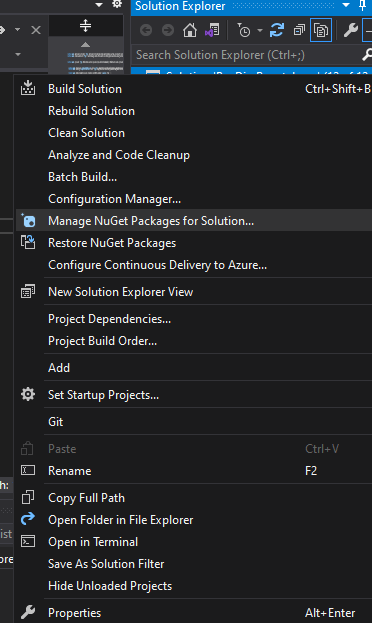
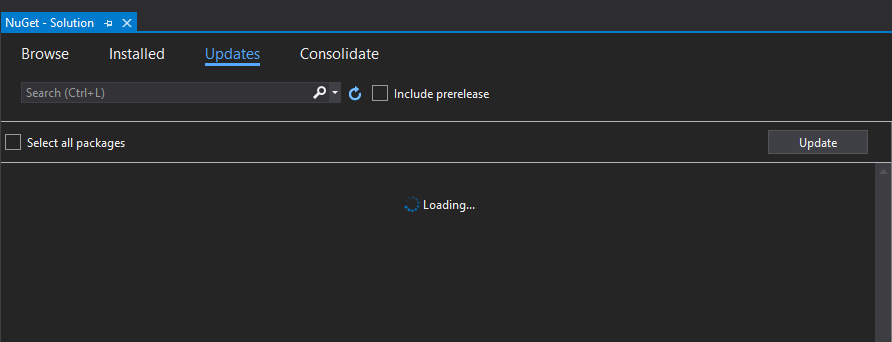
  • Update any packages coming under the update tab
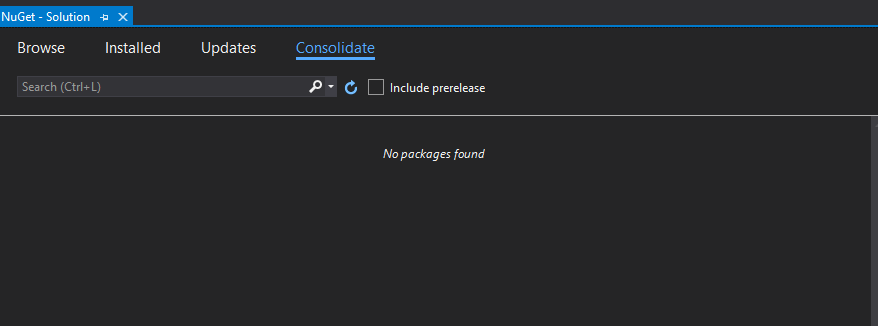
  • Consolidate any packages coming under the Consolidate tab. This is to make sure you have the same NuGet package version in all the projects
Once you do the above steps, follow the below steps –

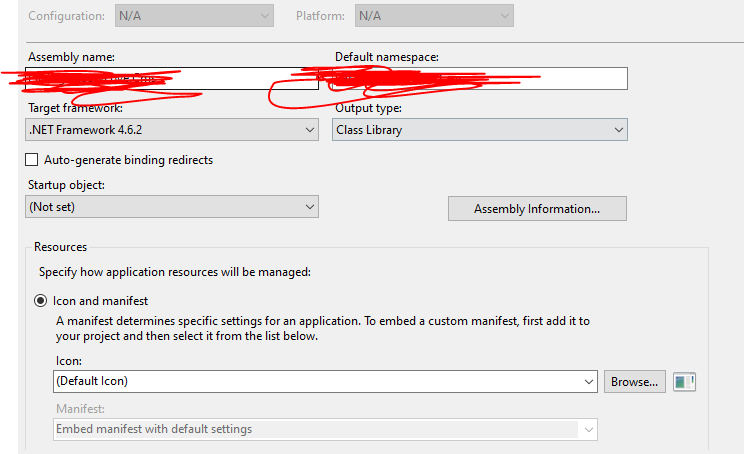
  1. Right click on each of the project and click Properties. Select the .Net framework version from the Target Framework dropdown as below
2. After updating the framework version for each of the project, you need to target each of the package in packages.config to the new framework version. For this, just run the below command in package manager console –

Update-Package -Reinstall

Convert JSON to csv in C#

Convert JSON to csv in C#

  • Given users.json as the json file
using (var csv = new ChoCSVWriter("users.csv").WithFirstLineHeader())
{
   using (var json = new ChoJSONReader("users.json") 
      .WithField("Username")
      .WithField("Sub", jsonPath: "$.Attributes[?(@.Name == 'sub')].Value", isArray: true)
      .WithField("EmailVerified", jsonPath: "$.Attributes[?(@.Name == 'email_verified')].Value", isArray: true)
      .WithField("GivenName", jsonPath: "$.Attributes[?(@.Name == 'given_name')].Value", isArray: true)
      .WithField("FamilyName", jsonPath: "$.Attributes[?(@.Name == 'family_name')].Value", isArray: true)
      .WithField("Email", jsonPath: "$.Attributes[?(@.Name == 'email')].Value", isArray: true)
      .WithField("UserCreateDate")
      .WithField("UserLastModifiedDate")
      .WithField("Enabled")
      .WithField("UserStatus")
   )
{
   csv.Write(json);
}
}

Check if the string is valid JSON in C#

C# validate json string

public static bool IsJsonString(string str)
{
     if (string.IsNullOrWhiteSpace(str)) { return false; }
     str = str.Trim();
     if ((str.StartsWith("{") && str.EndsWith("}")) || 
         (str.StartsWith("[") && str.EndsWith("]")))
      {
         try
         {
            var obj = JToken.Parse(str);
            return true;
          }
          catch (JsonReaderException jex)
          {
             return false;
          }
          catch (Exception ex) //some other exception
          {
             return false;
          }
      }
      else
      {
         return false;
      }
 }

Export Cognito Users from AWS Using AWS CLI

Export Cognito Users in AWS

As of today, there is no way to directly export users from Cognito in AWS.

But we can use AWS CLI or AWS SDK to get the list of users.

  • First step is to install AWS CLI on your machine

Click here to download and install AWS CLI

  • Next, step is to set up AWS on your machine. To do this, open cmd (command prompt) and do the following –
$ aws configure
AWS Access Key ID [None]: YourAccessKeyId
AWS Secret Access Key [None]: YourSecretAccessKey
Default region name [None]: YourRegion
Default output format [None]: json

Replace the above with your values. For more info, click here.

  • To get the list of all users in Cognito, run the following command
aws cognito-idp list-users --region <region> --user-pool-id <userPoolId> 
--output json > users.json

The above will return the list of users in a JSON format. If you want to get the result in a table format, run the next command

aws cognito-idp list-users --region <region> --user-pool-id <userPoolId>  --output table > users.txt
  • Now if you want to convert the result json to csv. Use the following code snippet.
private static void ConvertJsonToCsv()
{
 using (var csv = new ChoCSVWriter("users.csv").WithFirstLineHeader())
 {
   using (var json = new ChoJSONReader("CognitoUsers.json")
             .WithField("Username")
             .WithField("Email", jsonPath: "$.Attributes[?(@.Name == 
              'email')].Value", isArray: true)
             .WithField("UserStatus")
         )
  {
     csv.Write(json);
  }
 }
}

Rebuild examine index programmatically

Rebuild examine index

You can rebuild the examine index programmatically by using the following code –

ExamineManager.Instance.IndexProviderCollection["InternalIndexer"].RebuildIndex();
               

Interested in Cryptocurrency. Register and start investing here

Earn a side income by affiliate marketing. Learn here how to do it.